

Mac app

TuneLatch
Your play key always reaches Spotify

TuneLatch sends your Mac keyboard’s media keys to Spotify — or any other app you choose — instead of whatever happened to make a sound last.

You press ⏯ to pause your music, and macOS pauses the YouTube tab you opened an hour ago. Or it launches Apple Music, which you never use. TuneLatch catches that key and latches it onto the app you actually meant.

  • Always the right appYour play key never lands on the wrong tab again.
  • Pick your own target appSpotify, Music or another player on your Mac.
  • Stays out of the wayOne small menu bar icon, and nothing else.
The TuneLatch app icon: a white play and pause symbol on a purple background.

The play key almost never controls what you meant

macOS decides for itself which app receives your media keys, and it usually picks whichever one made a sound last. In practice that is a video tab, an autoplaying ad, or a meeting app. And when nothing is playing at all, macOS opens Apple Music — even if you never use it.

You know how it goes: you hit pause, your music keeps playing, and something falls silent somewhere else. You hunt down the window, click manually, and next time it starts all over again. A small irritation that repeats dozens of times a day.

TuneLatch catches the key before macOS decides

TuneLatch sits at the front of the chain macOS uses to hand out key presses. A tap on ⏯ is caught there and forwarded straight to the app you picked. Other programs simply never see the keystroke, so nothing gets paused by accident.

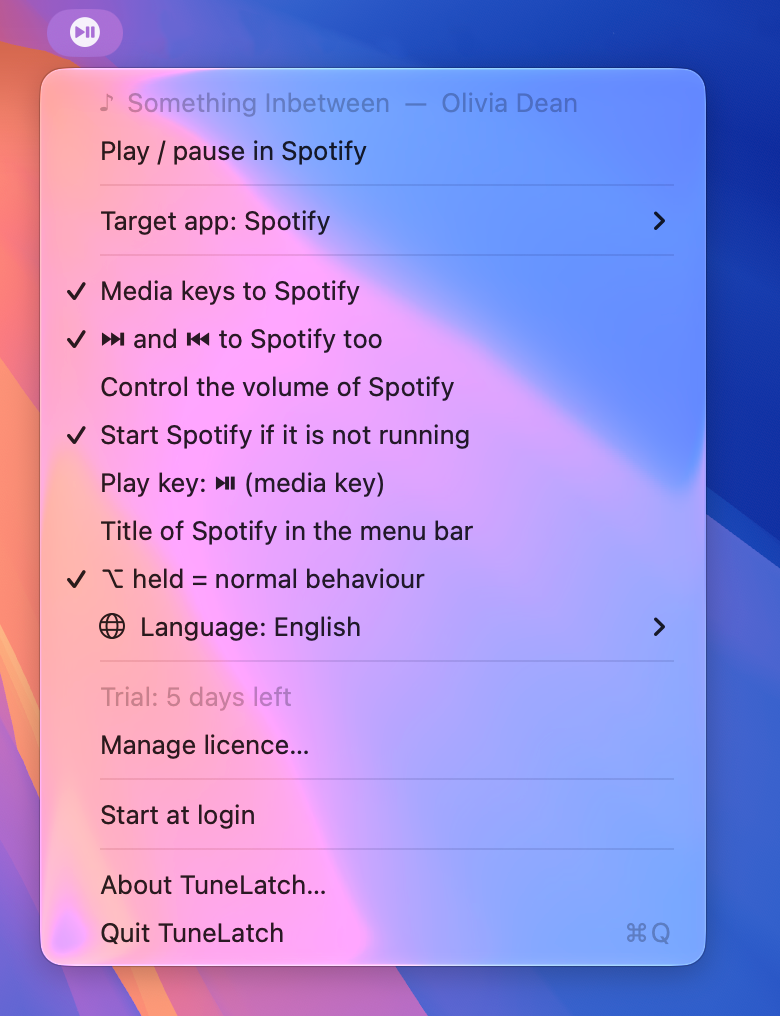
That covers the whole set: play and pause, next and previous track, and the volume keys if you want them. If your music app is not running yet, TuneLatch starts it and resumes playback — instead of Apple Music opening.

Hold with the play key to bring your music app to the front, and again to tuck it away. Hold and the key behaves exactly as macOS normally would, just for that press.

Spotify is the default, not the limit

Pick whichever app should receive the media keys from the menu. TuneLatch reads from the app itself which commands it supports and adapts accordingly. If an app has no previous-track command, that key keeps its normal behaviour instead of vanishing into nothing.

Using a mouse or keyboard with its own volume dial — through Logitech Options+, for instance? TuneLatch recognises that the command did not come from your keyboard and leaves it alone. Your dial keeps controlling system volume.

  • Target app in two clicks Choose from the music and video players on your Mac, or browse to any other app.
  • Shows what is playing Title and artist sit in the menu bar, without switching apps to check.
  • Volume is optional System volume stays system volume by default; turn it over only if you want to.
  • Starts with your Mac One switch and TuneLatch is there from login onwards, asking nothing further.

What TuneLatch does not do

To intercept media keys, TuneLatch asks for accessibility access on first launch. That is a serious permission, and you are right to wonder what an app does with it. So, explicitly: TuneLatch looks at media keys only. Ordinary keystrokes never reach the app, are not read, not stored and not sent anywhere.

Beyond that it talks only to your own Mac. There is no account, no profile and no analytics coming back to us. The one moment it reaches out is when you activate your licence, and nothing travels along but your licence code and your computer’s name.

Coming soon

TuneLatch is finished and will be released shortly. The link to the store will appear here as soon as it is available. Want a note when it lands? Let us know through the contact page.

  • Requirements macOS 13 (Ventura) or later, on both Apple silicon and Intel.
  • Signed and notarised Checked by Apple, so it opens without any warning.
  • Works offline TuneLatch needs no internet connection to do its job.
  • Made in the Netherlands Built and supported by InnoDIGI, with support in English and Dutch.