Get to know us

Our own product Platform

Teamplein Collaborating in one place, under your own control

Files, messages, calendar and video calls in one environment, with a single way to manage who can access what. Teamplein is built for organisations that must be able to account for what happens, such as municipalities, regions and other public bodies.

It runs with us in the Netherlands or on your own server, with no Microsoft or Google in between. Every action goes into the log, and whatever someone deletes is kept for a Woo request (Dutch Open Government Act).

Also from InnoDIGI: Software · InnoARCHIVE · Consultancy

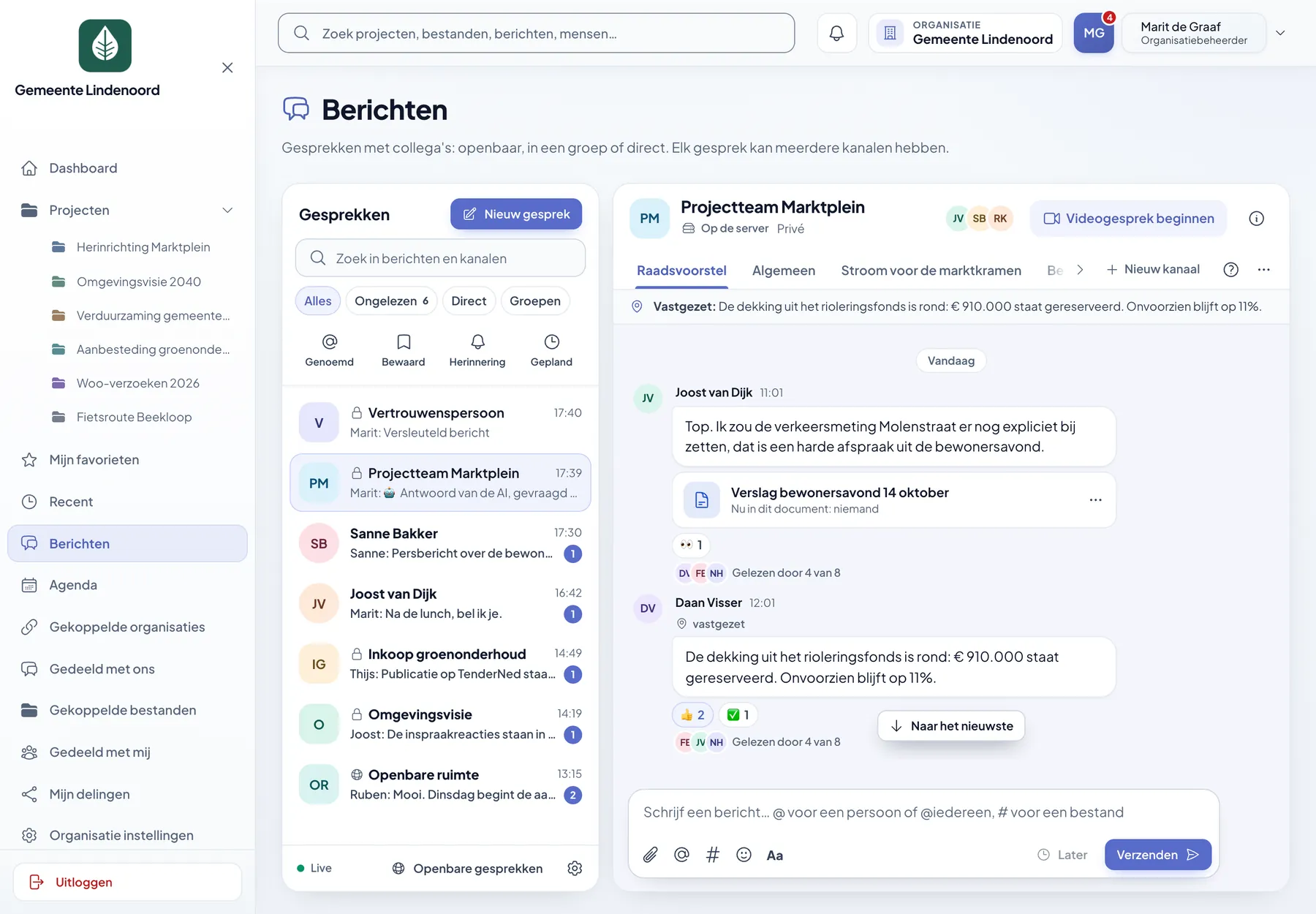
Teamplein opened on Messages: a list of conversations and a project conversation with a document, replies and who has read it.
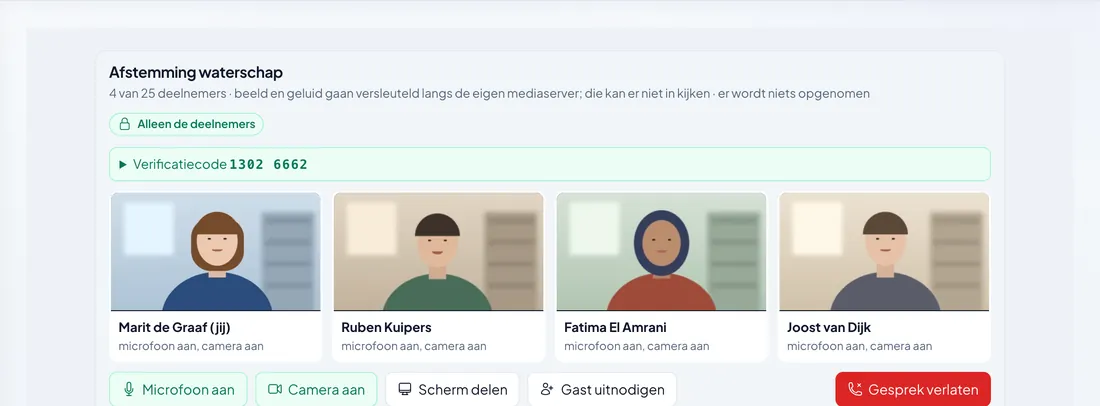
Video call with four participants, end-to-end encrypted and with a verification code.
  • Everything in one environmentNo separate programs for documents, chat, calendar and calls.
  • Permissions down to folder levelSet per group, and the chat and AI keep to it.
  • Everything recordedWho did what and when is in the log.
  1. CaptureFiles, folders and phases.
  2. DiscussMessages and video calls.
  3. PlanCalendar, registration and publishing.
  4. AccountLog, archive and Woo.

01

What Teamplein solves

The documents are in a shared folder, the discussion in a chat app, the appointments in a calendar and the video call with yet another company. Each program has its own permissions, and why something was decided that way is recorded nowhere. When a Woo request comes in, the searching begins.

Teamplein brings that together. A file, the conversation about it, the appointment and the video call belong to the same project and fall under the same permissions. Whoever may not open a folder will not see the file via the chat, the search function or the AI either.

That delivers two things at once: an overview while you are working, and a complete case file when you need to come back to it later. For the second, nobody needs to make a separate effort, because it builds up by itself.

02

Tour of the application

This is what Teamplein looks like today. Click a screen to view it at full size.

All screens come from a demo environment with a fictional municipality, fictional people and fictional documents.

Files and projects

Everything that belongs to a project, in folders you organise yourself

Every case file, workstream or team gets its own project, with phases that you name and colour yourself. It holds not only documents but also photos, video, audio, websites, texts and tasks, each with its description, labels, deadline and comments.
  • Ten types of content, from PDF and photo gallery to wiki and task list
  • View documents without downloading them, with versions and who changed what
  • Comments, stars and yes/no votes per file
  • Search within the content of files, showing the passage where it appears
  • Switch over from Nextcloud with the built-in import
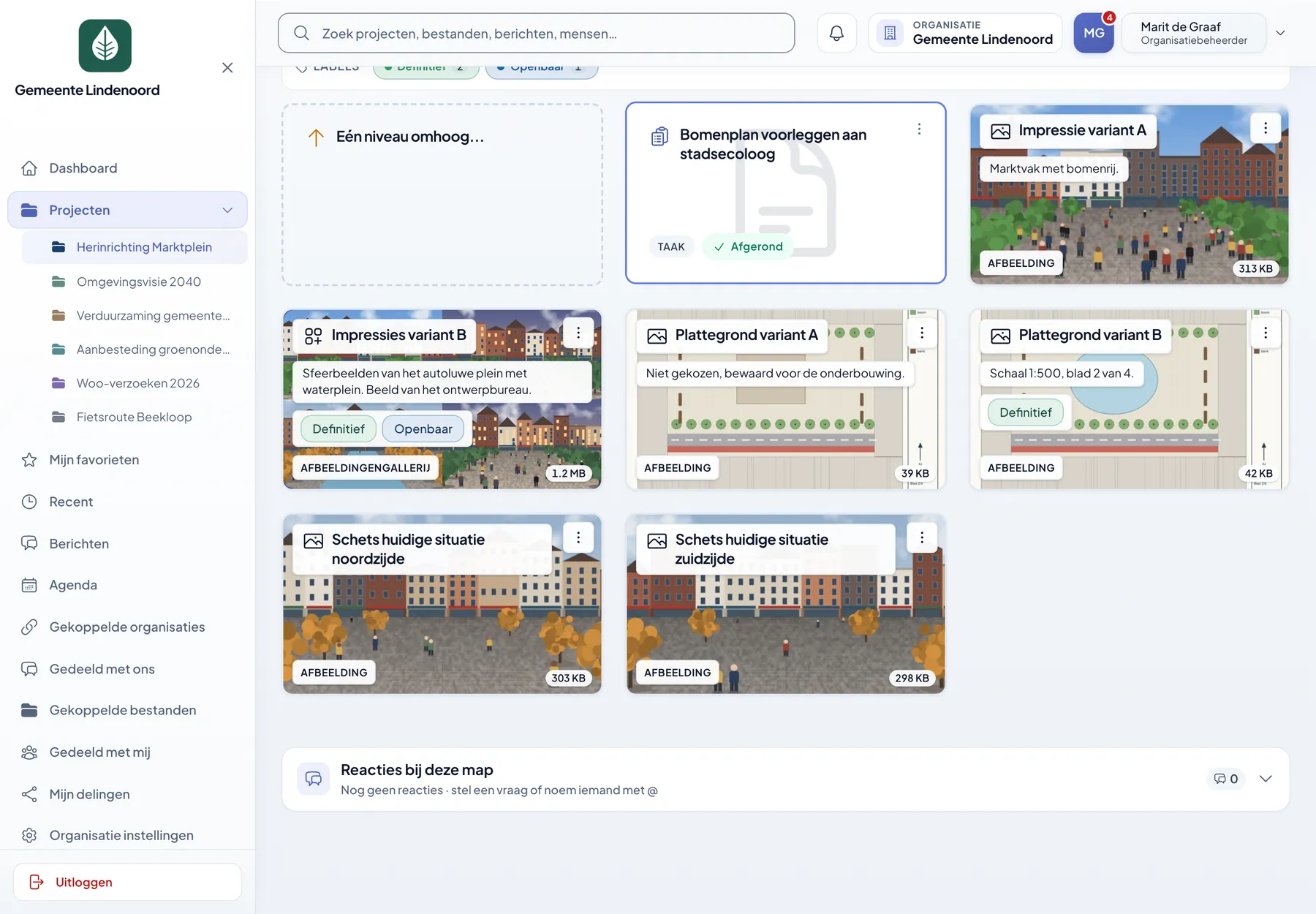
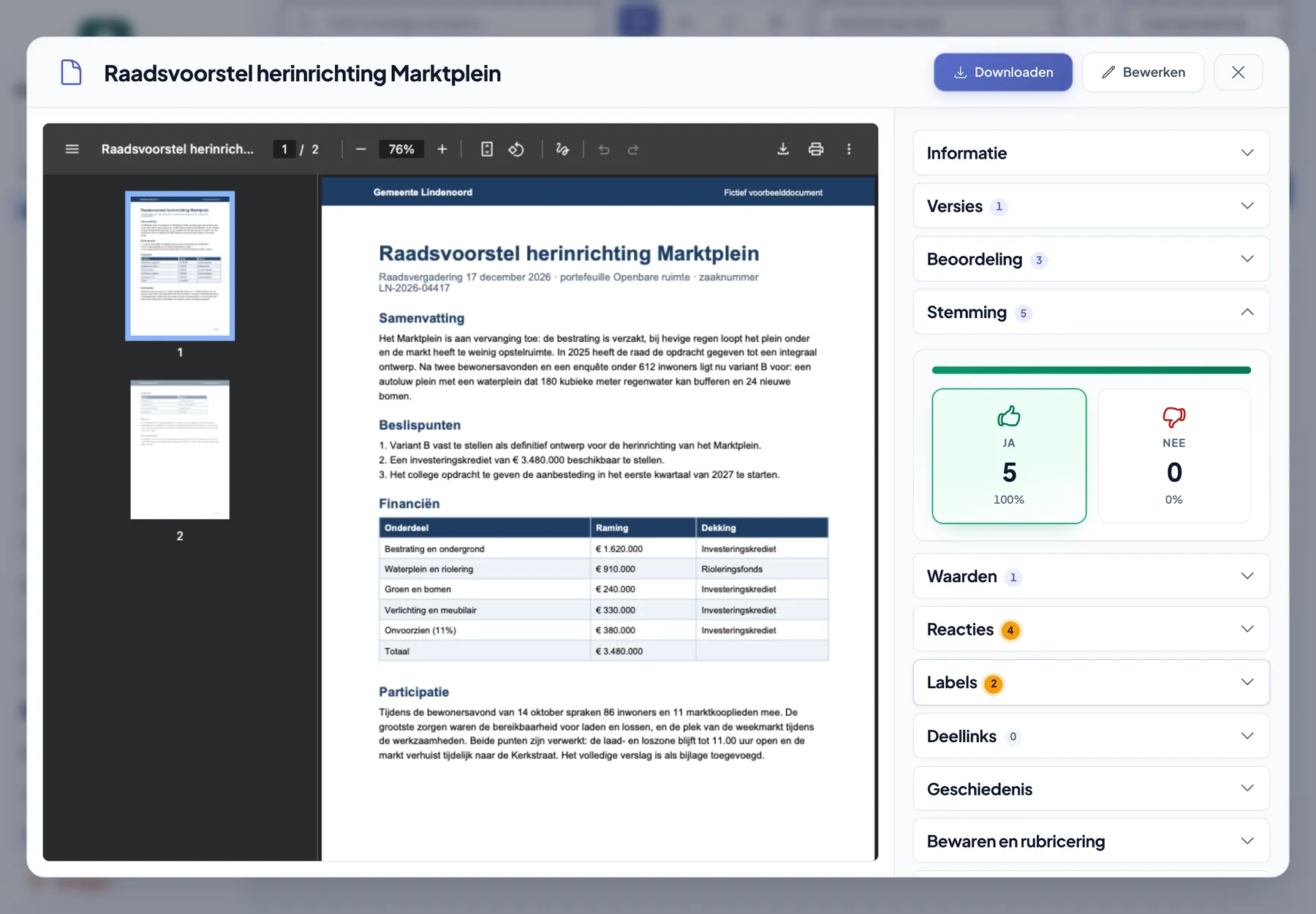
Project folder Design in grid view, with cards for impressions, floor plans and a completed task. Council proposal opened in the built-in PDF viewer, with versions, assessment and voting alongside.
A folder in grid view, and in the small image a document with information, votes and comments next to it.
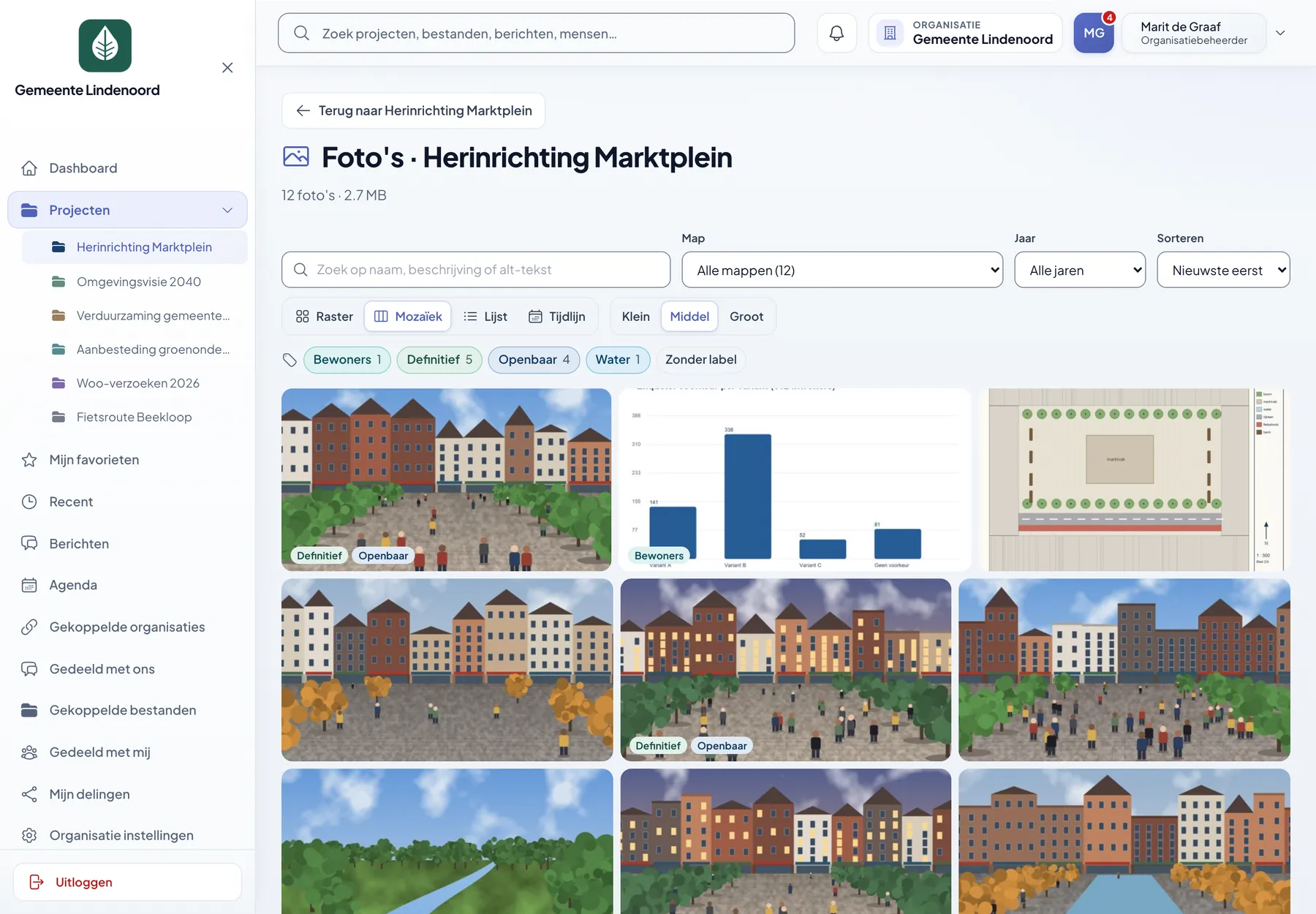
A project's photo library in mosaic view, with filters for folder, year and label.
Photo library. All the images of a project, as a grid, mosaic, list or timeline.
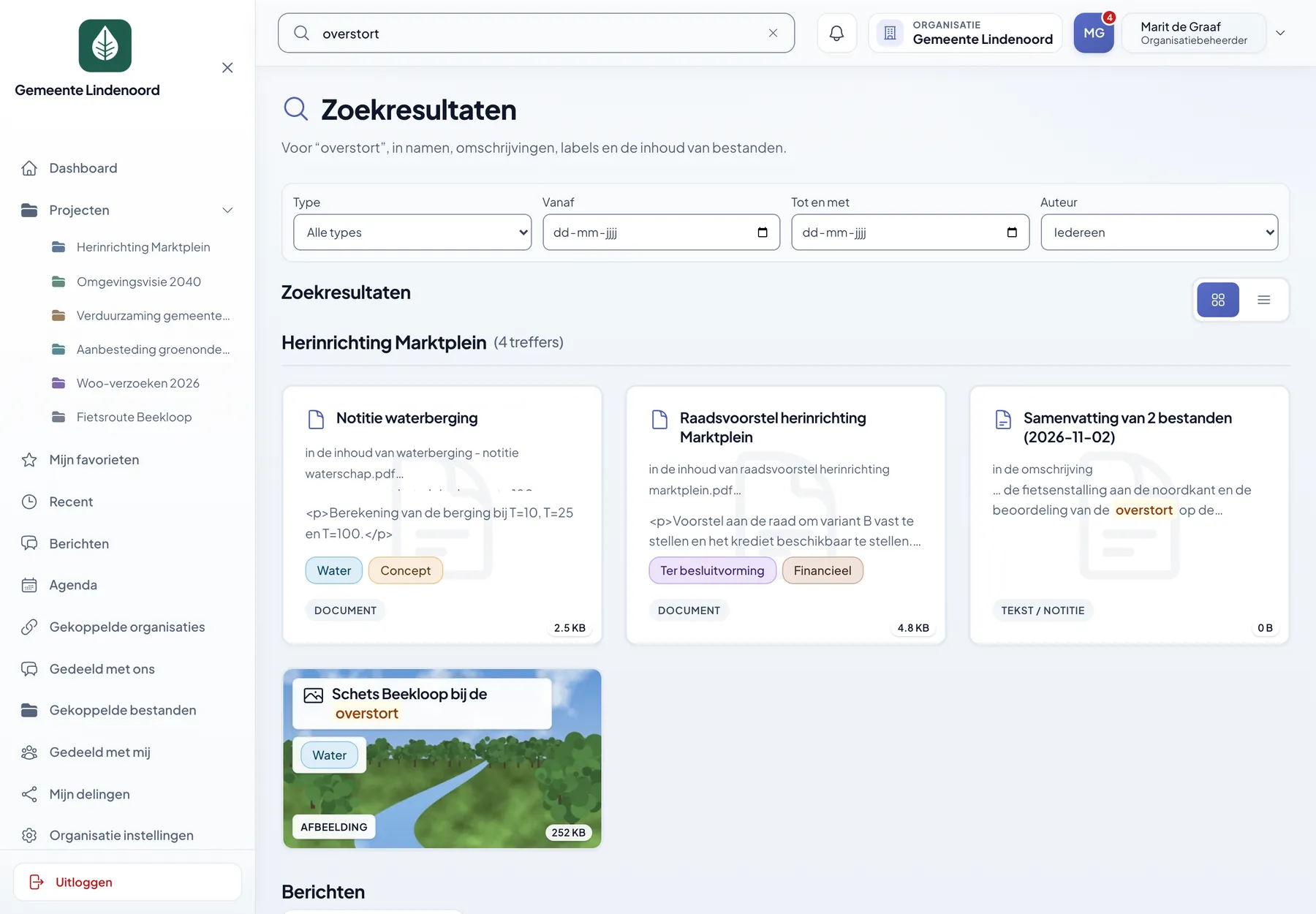
Search results for the word overstort, with the passage from the file's content for each hit.
Search. Hits in names, labels, messages and the content of files, with the passage alongside.

Messages

Conversations that belong with the work, not in a separate app

Discuss with a colleague, a project group or the whole organisation. Every conversation can have channels per topic, and you refer to a file with a link: whoever may not open it will not see it via the chat either.
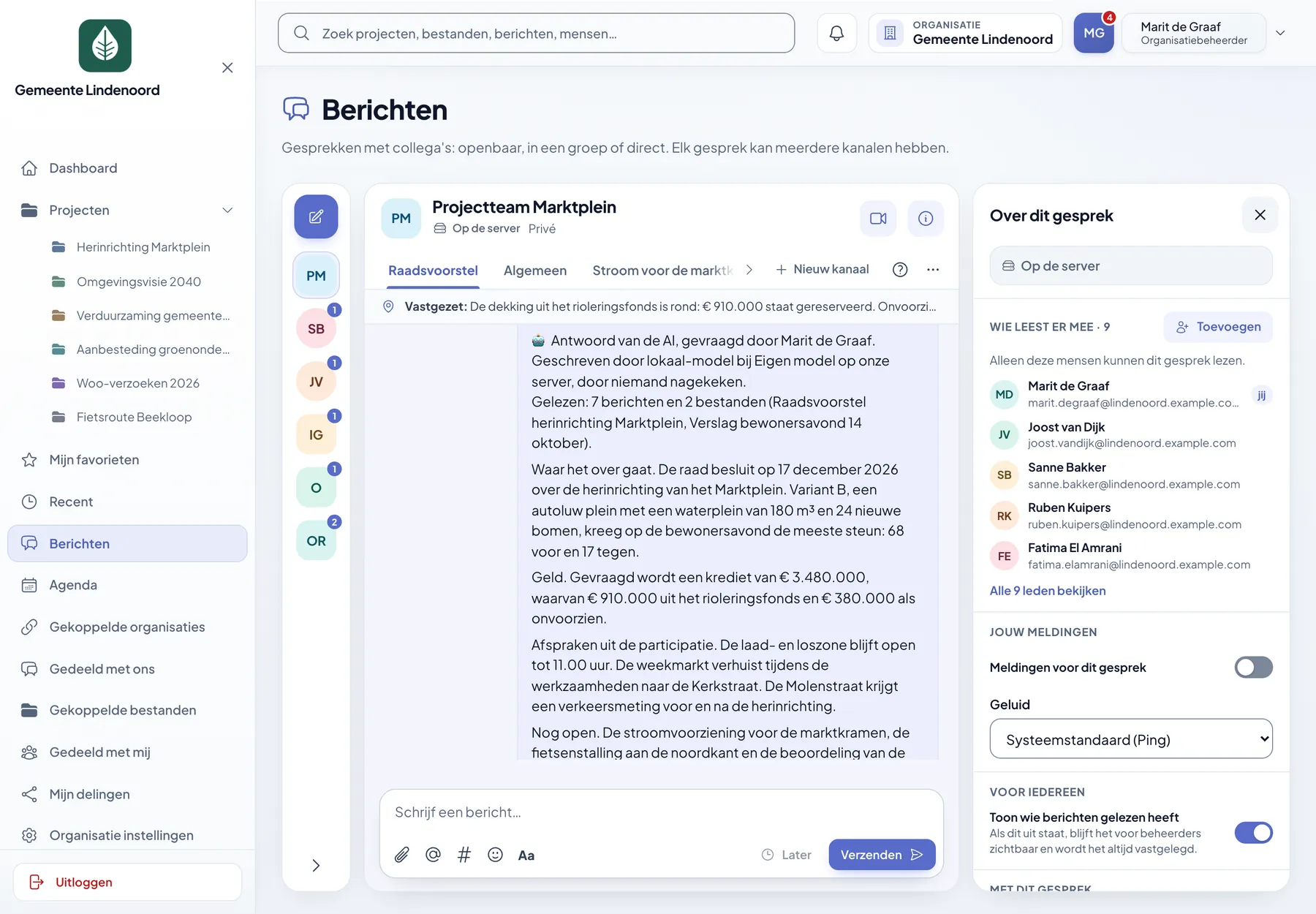
  • Direct, in a group or public, with channels per topic
  • Mentions, threads, emoji reactions and pinned messages
  • Schedule a message, set a reminder and save for later
  • Save a conversation as a document in a project folder
  • Notifications within the app itself, without a notification service from Google or Apple
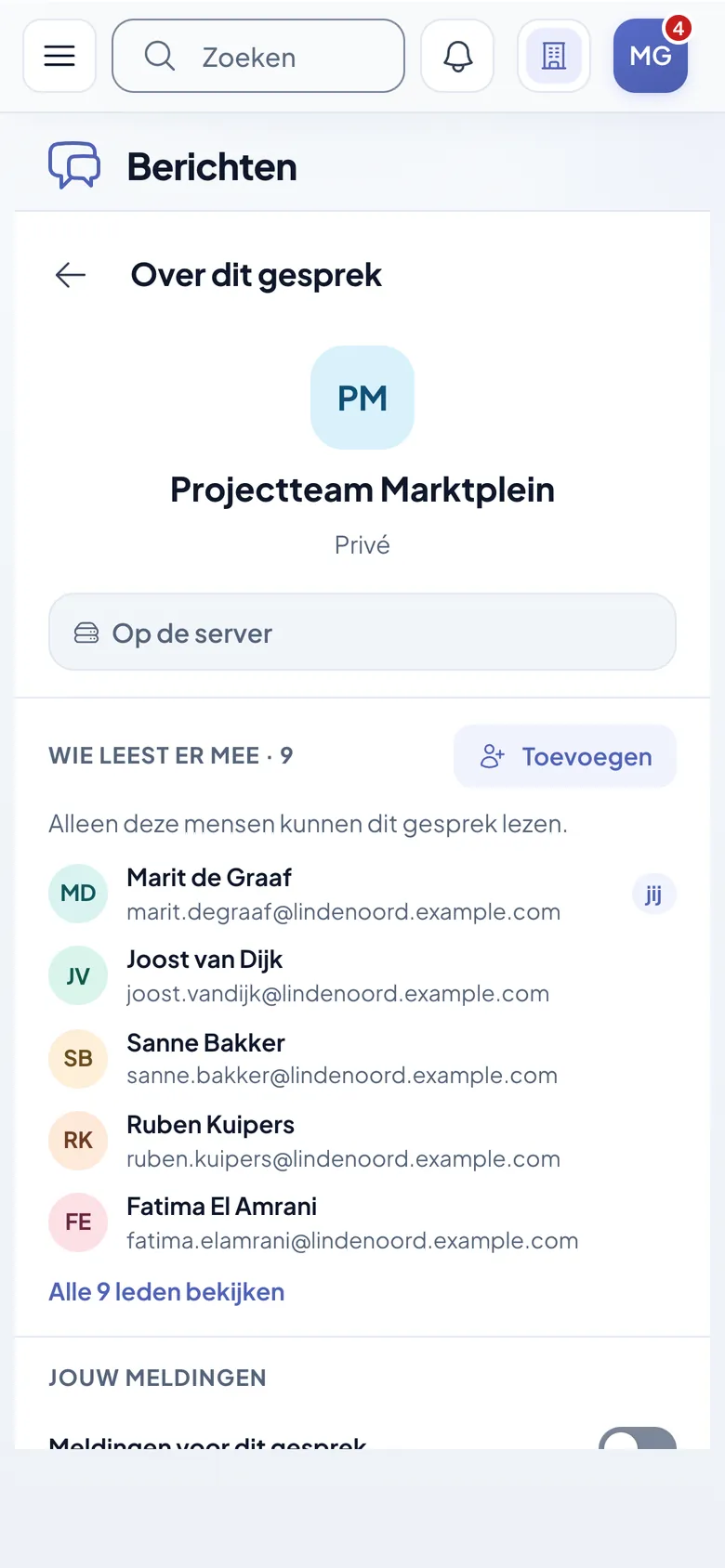
Messages with the About this conversation panel: who is reading along, notifications and the security of the conversation.
Every conversation shows who is reading along and how it is secured.

Agenda

A calendar per team, and one for the whole organisation

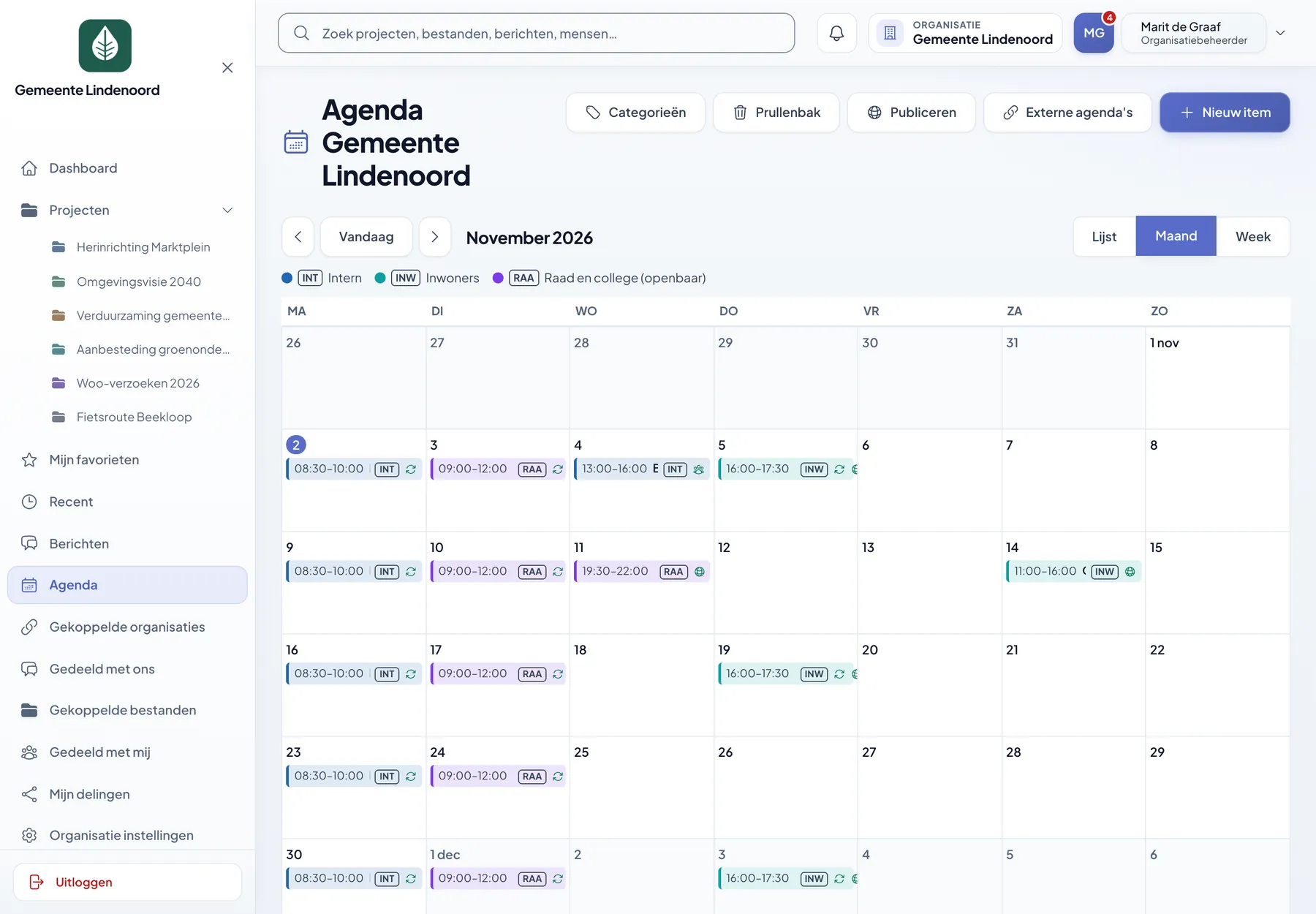
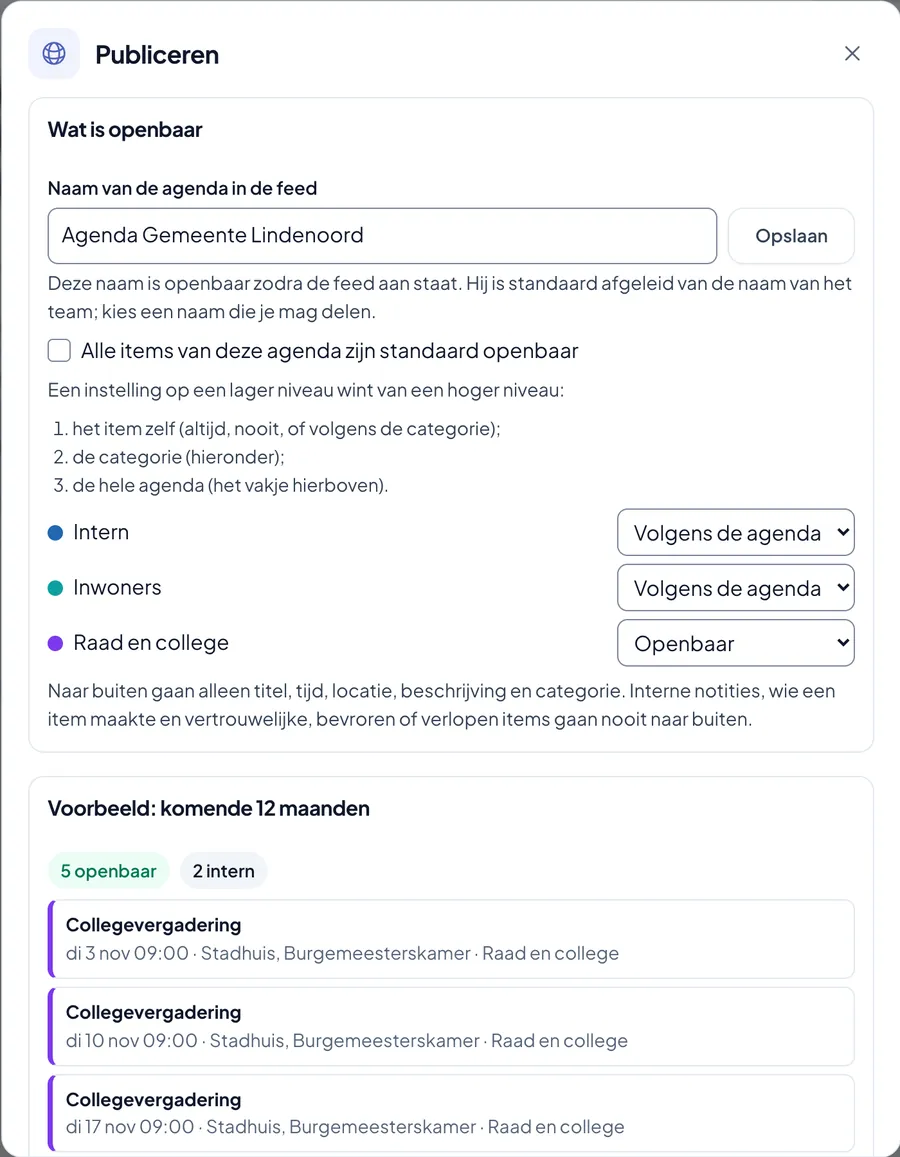
Recurring appointments, registration with a maximum and a waiting list, and a video call that belongs to the appointment. What may be public, you publish to your website with one setting; the rest stays internal.
  • A recurrence as one item, with skipping or moving a single occurrence
  • Invite members and groups, with yes, no or maybe
  • Read in external calendars from Outlook or Teams via iCal
  • Publish as iCal, JSON or an embed, and with a WordPress plug-in
  • Internal notes and participants' names never go outside
Month view of the calendar with meetings and public items by category. The Publish window with the choice of public or internal per category, and a preview of what goes outside.
The organisation's calendar, and in the small image the window that shows exactly what is public.

Video calls

Calling on your own infrastructure, and nothing is recorded

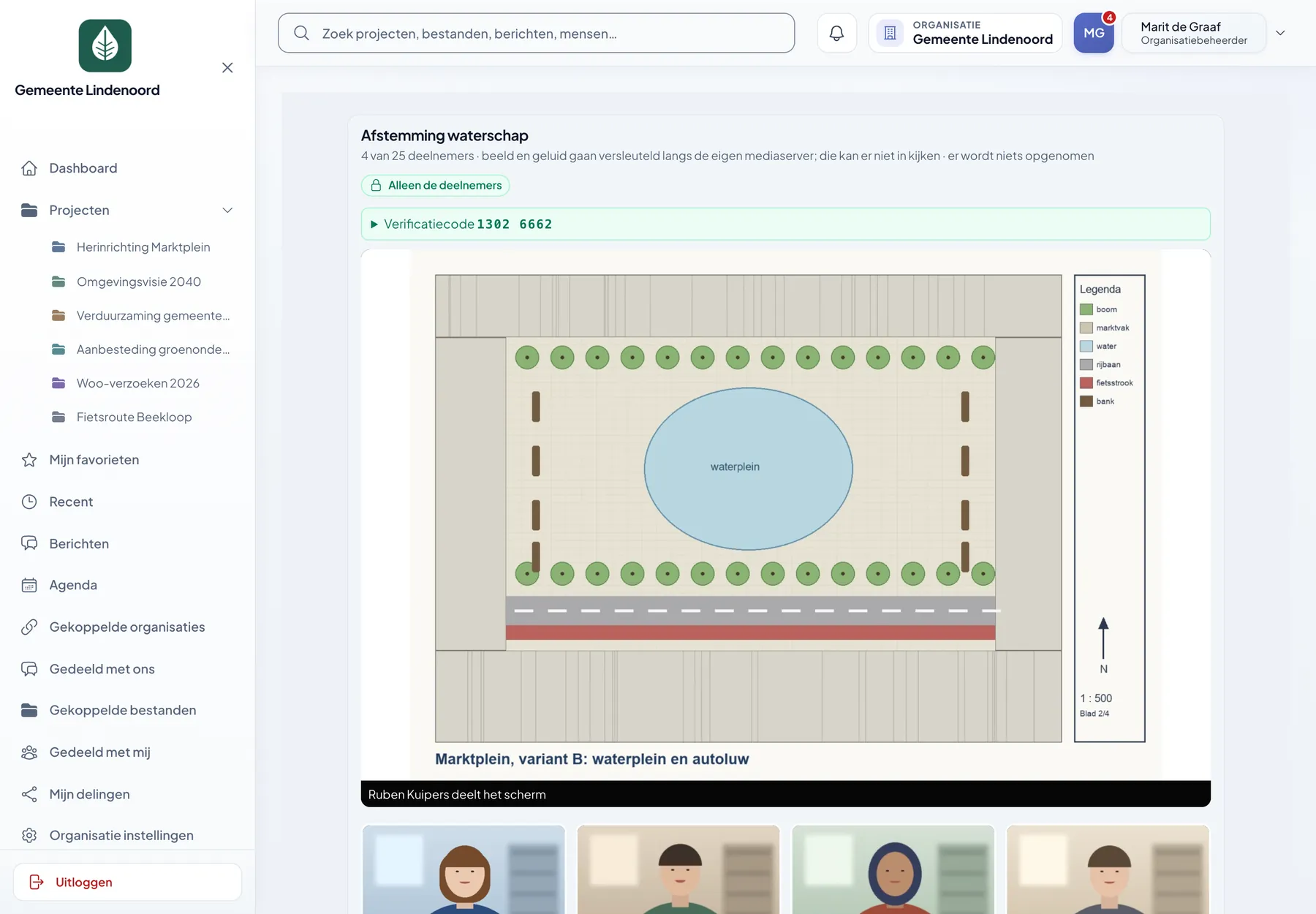
A call starts in a chat, from a calendar item, in a project or from someone's profile. Video and audio run through your own media server and are end-to-end encrypted, so even that server does not look in.
  • Up to 25 participants with your own media server, and more if desired
  • A verification code to check that nobody is listening in
  • Screen sharing, with the shared screen shown large
  • Outside guests via a link, always in the waiting room first
  • No recording; the log shows who was there and for how long
Video call with four participants in which Ruben shares a site plan of the square, with the verification code at the top.
Four participants and a shared screen. The camera images in this demo are illustrations.

AI help

AI that only does what you allow, and says so

Have documents or a conversation summarised, or ask a question with @AI. This is off by default. The administrator chooses where the text goes: a model of your own on your own server, or an external provider, with a warning about what that means.
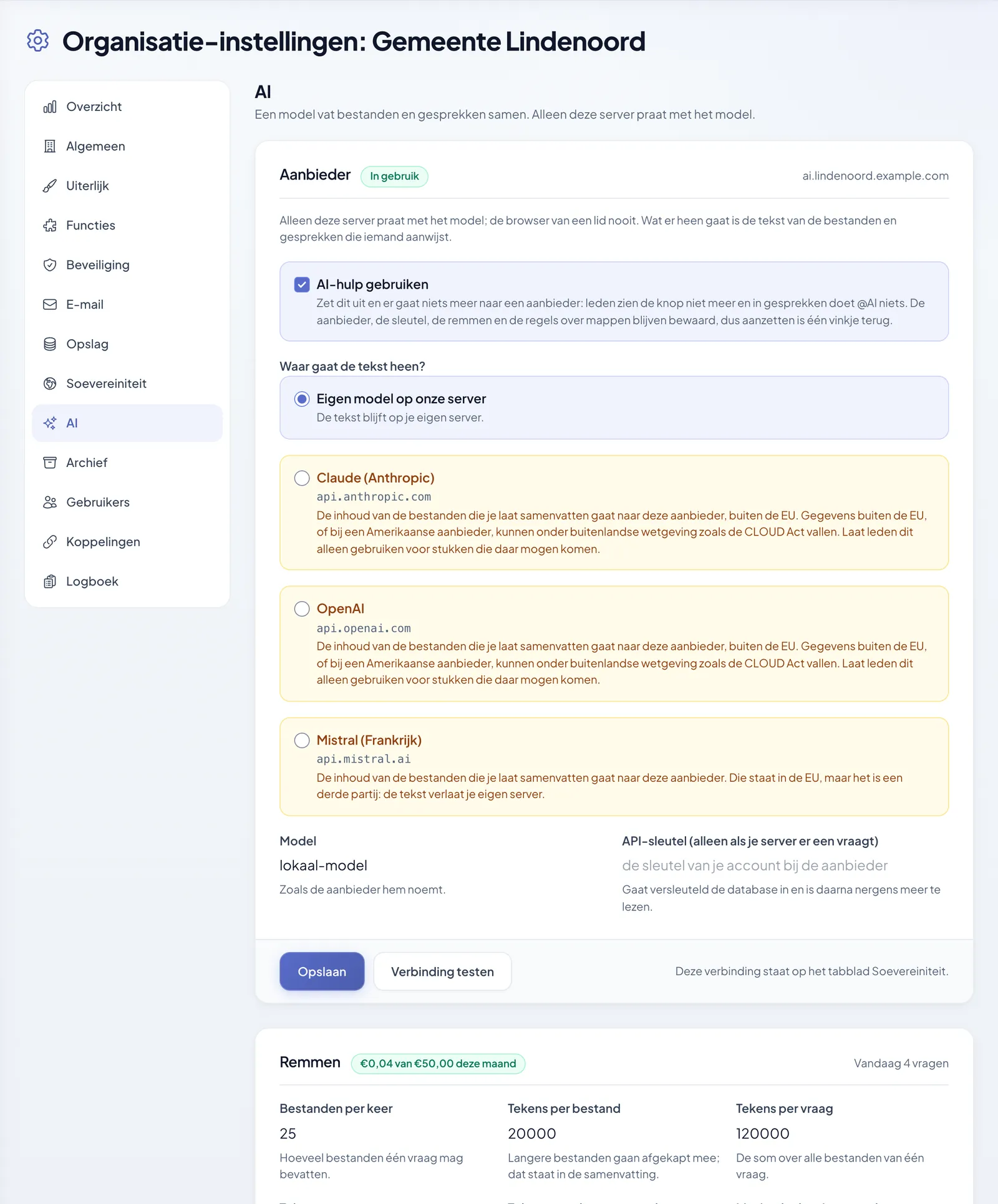
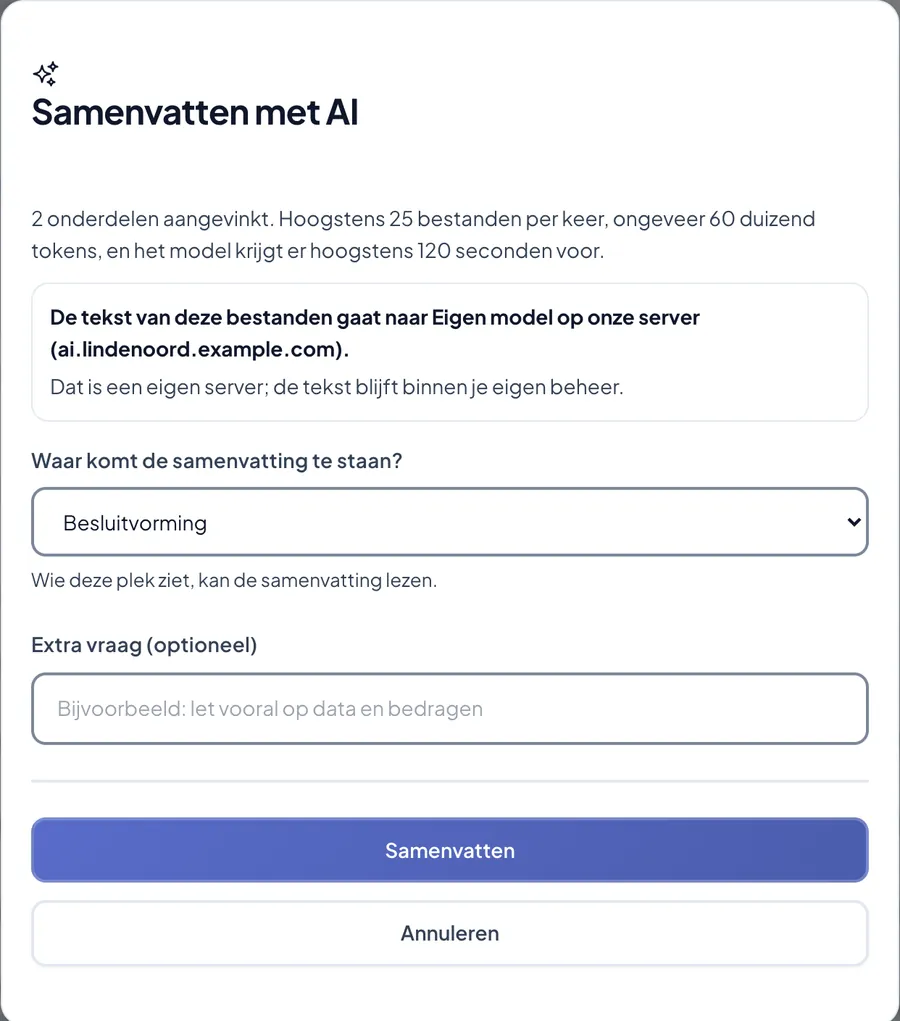
  • Your own model, Mistral, Claude or OpenAI: you choose, the browser never talks to them
  • Works with the permissions of whoever asks; confidential documents are left out
  • Warning when a summary reaches people who may not read the source
  • Limits on folders, size, tokens, number of questions and monthly budget
  • The summary is an ordinary file and states itself that a model wrote it
Settings for AI help with the choice between your own model and external providers, each with a warning. The Summarise with AI window, saying where the text goes and where the summary will be stored.
The administrator chooses the provider; the small image shows what an employee sees before anything is sent.
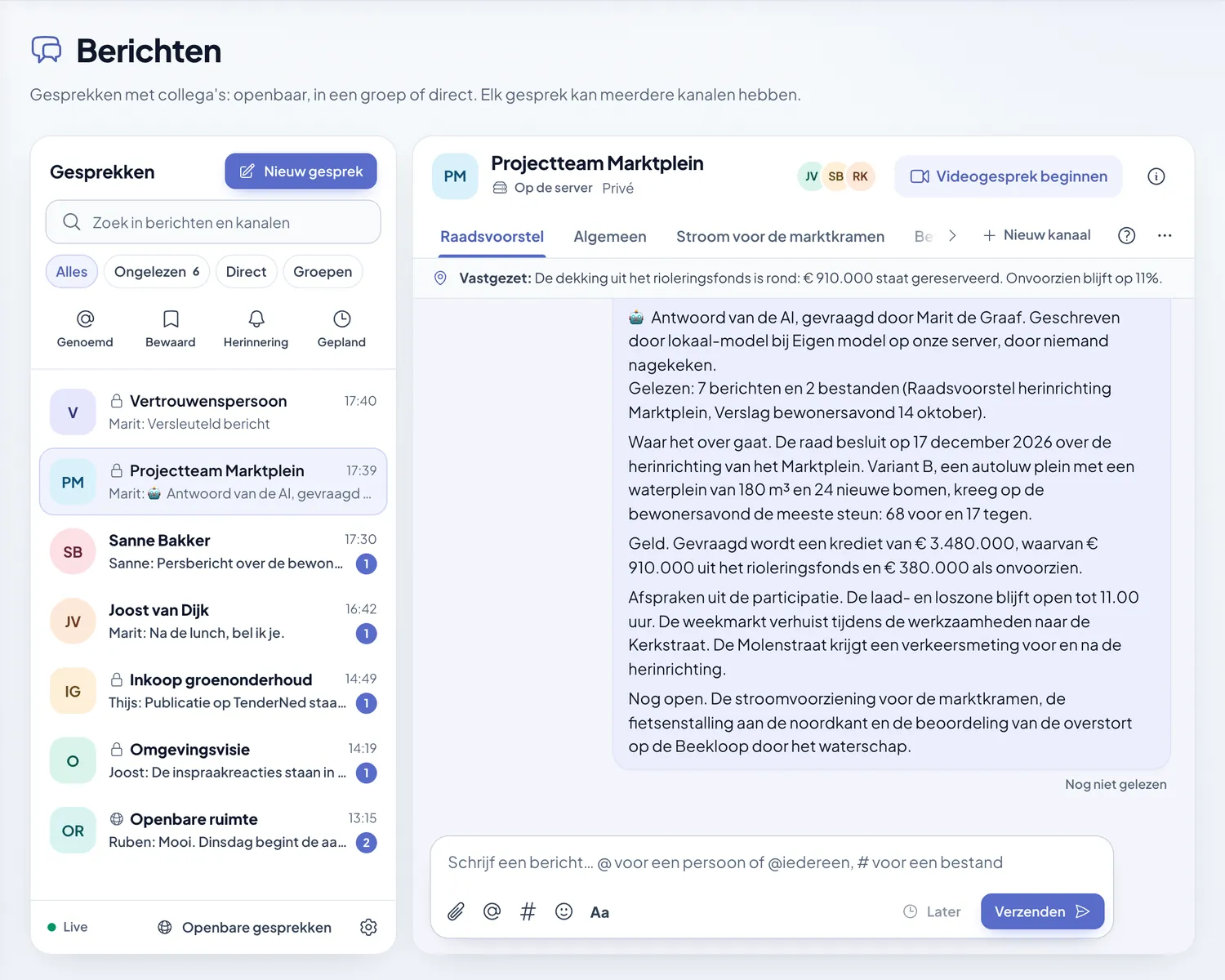
An AI answer in a conversation, with above it who asked, which model wrote it and that nobody checked it.
@AI in a conversation. The answer itself states who asked, which model wrote it and that nobody checked it.
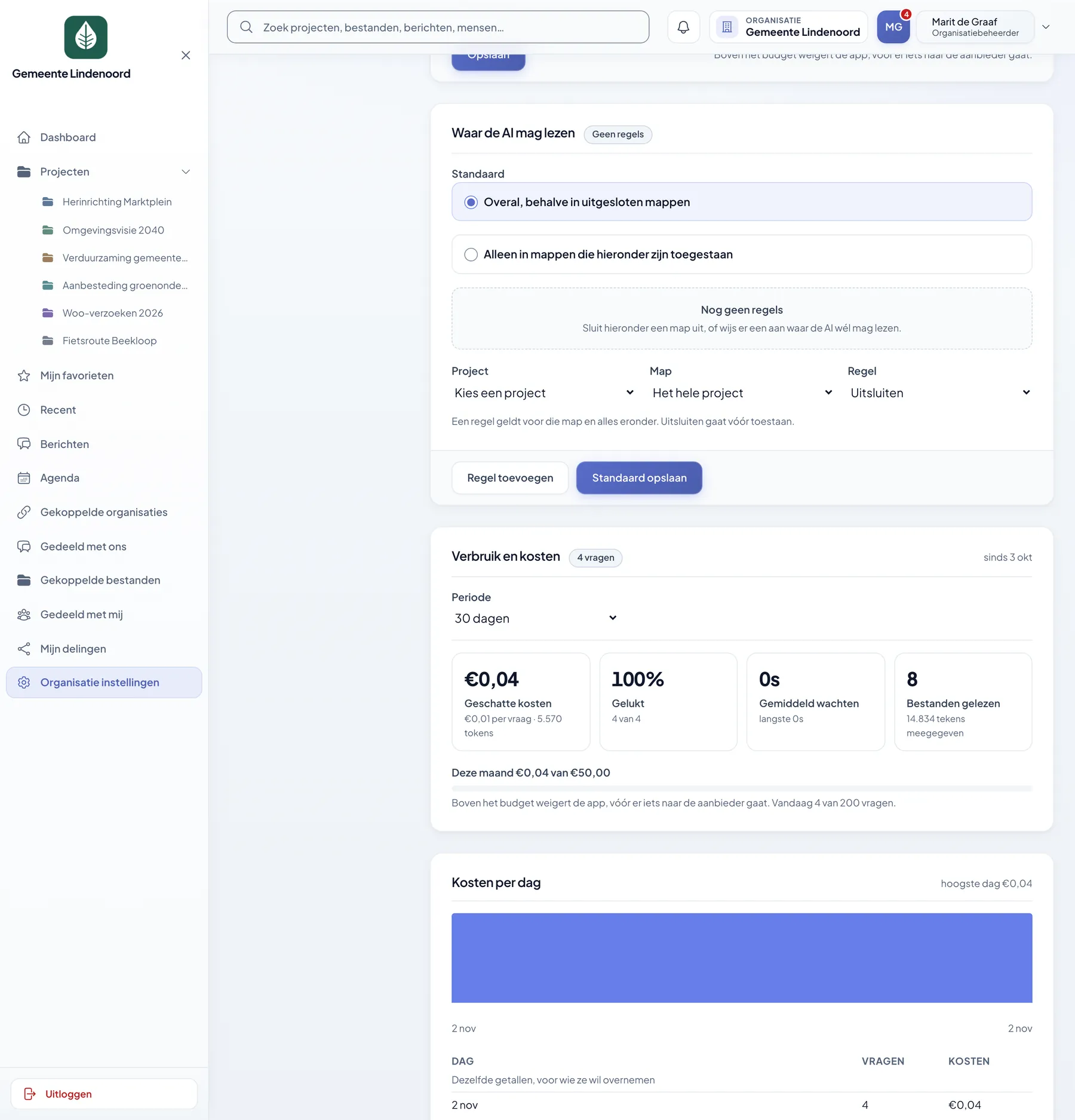
Usage and costs of the AI help with estimated costs, success rate and costs per day.
Usage and costs. Estimated costs per day and per person, and whether it works.

Confidential conversations

Being able to talk off the record, when needed

For a personnel matter or a conversation with a confidential adviser, you can make a conversation confidential. The browsers then encrypt the messages themselves; the server stores unreadable text and not even an administrator can read along.
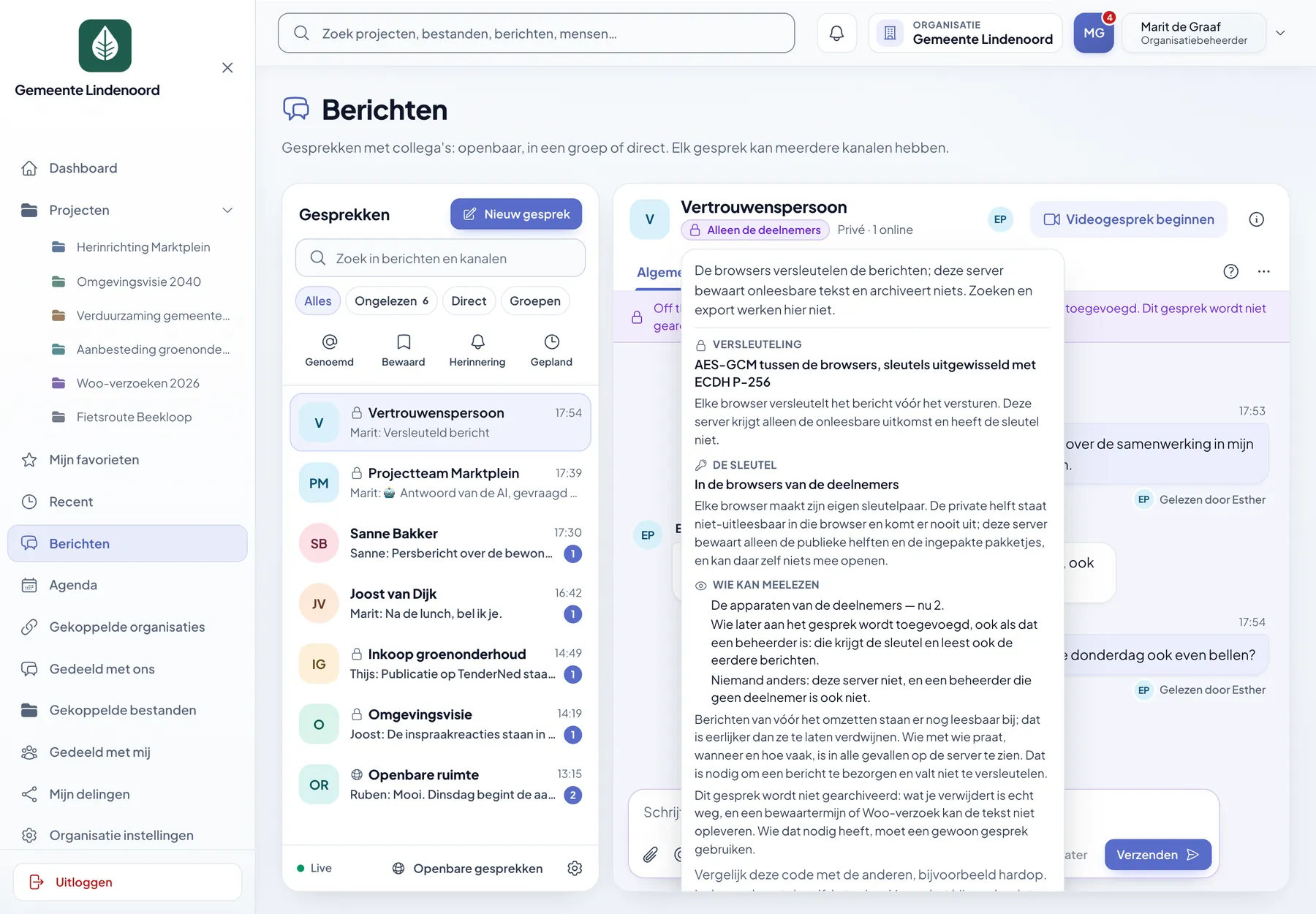
  • Every conversation shows what the security is and who can read along
  • Security code to compare with each other
  • Honest about the price: no search, no archive, no Woo disclosure
  • The organisation decides for itself whether this feature is available
Confidential conversation with the label Only the participants and the explanation of encryption, key and who can read along.
An expanded label with the three facts: the encryption, where the key is stored and who can read along.

Sharing and linking

Collaborating with people outside your organisation, on your terms

A supplier or adviser gets a share link with a password and an end date, without an account. If you work with another organisation on an ongoing basis, you link the two environments, even if they are on different servers.
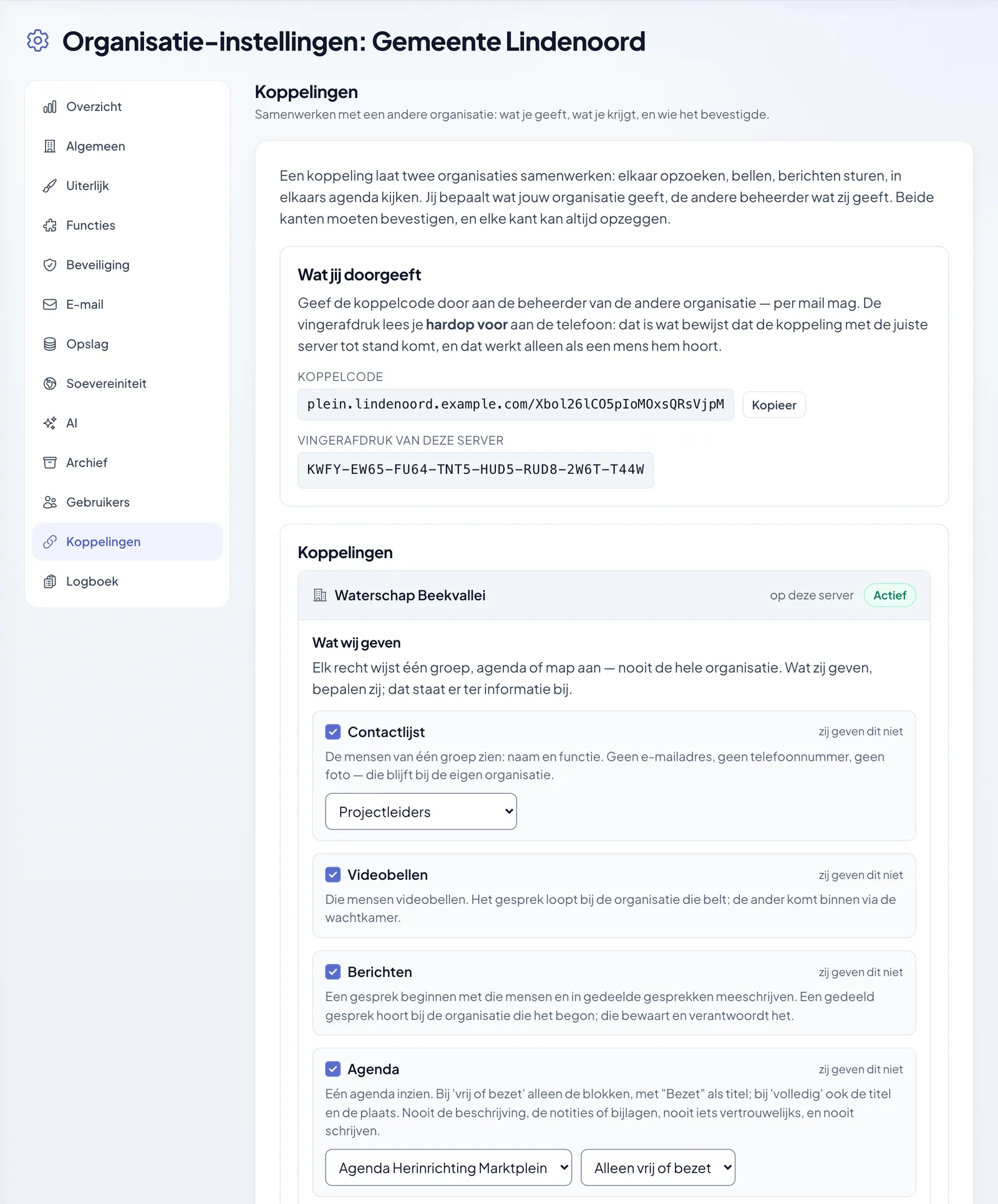
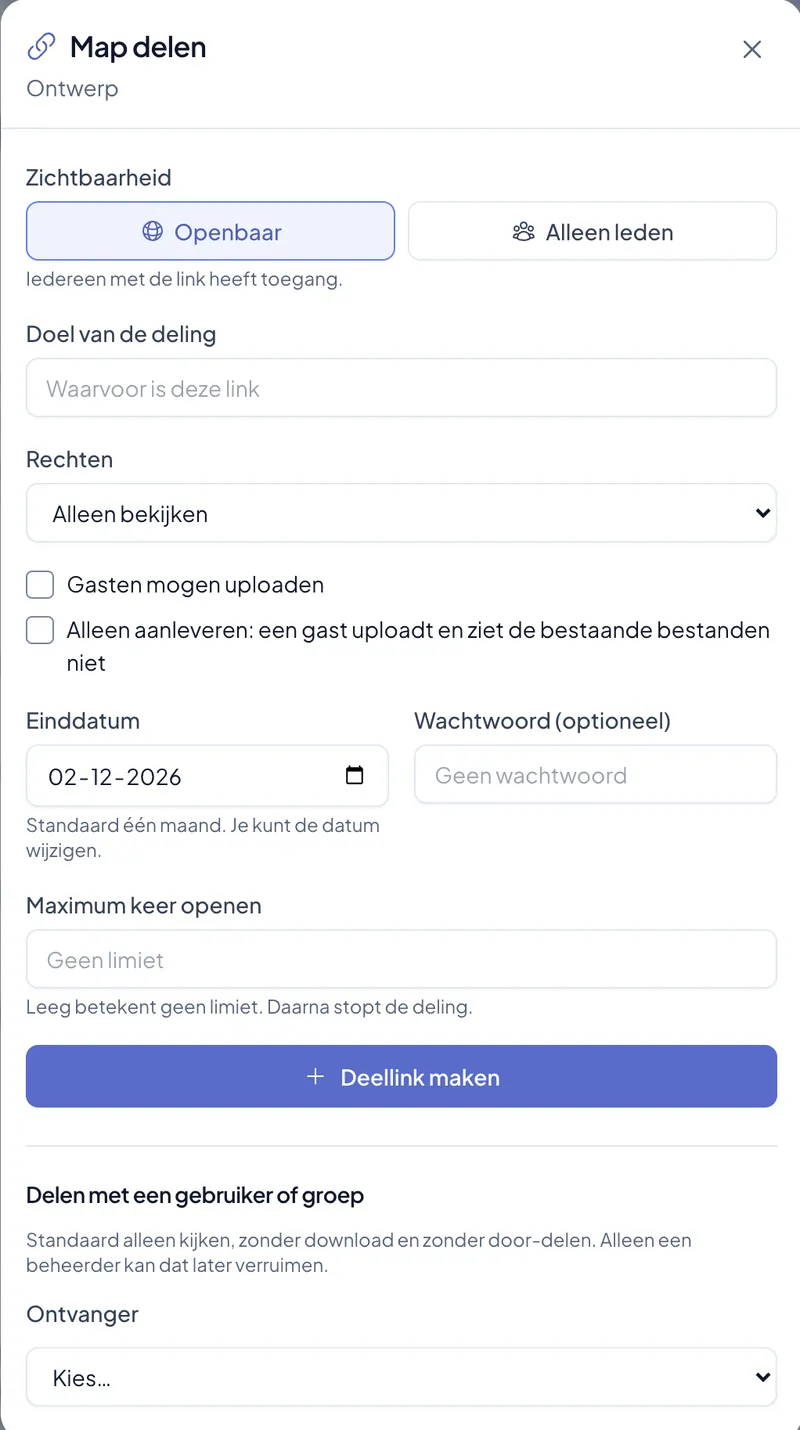
  • Share link for a file, folder or project: view, download or submit only
  • Prior approval, a maximum number of times opened and an overview of what is still open
  • Linking with a fingerprint that two administrators read out to each other
  • Decide per direction what the other side may do: contact list, calling, messages, calendar, files
  • Files are not copied and ending the link takes effect immediately
Link with a water board with a switch for each permission, the designated group, calendar and folder. The Share folder window with visibility, permissions, end date, password and maximum number of times opened.
The permissions of a link, and in the small image the window for a share link.
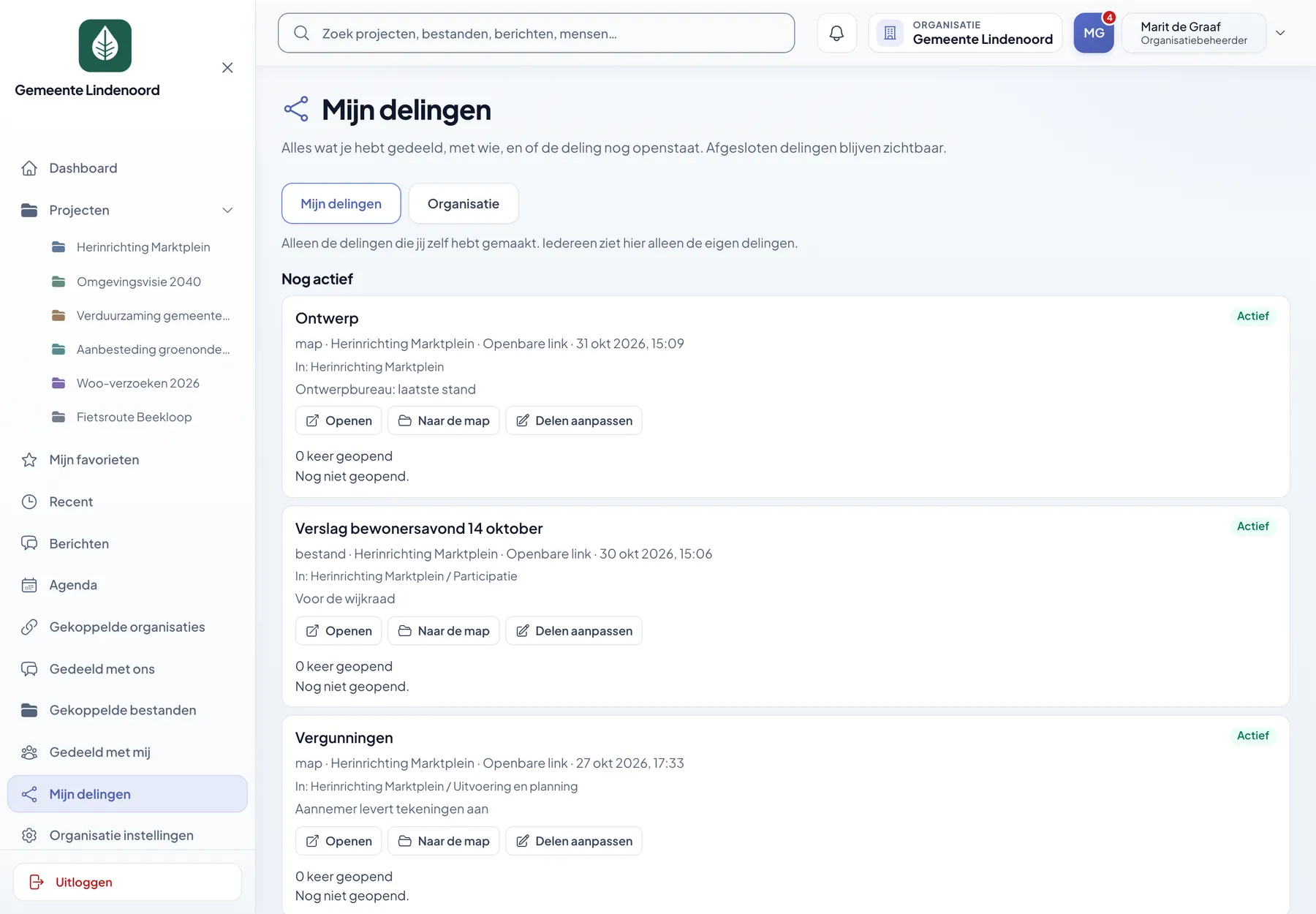
My shares overview with, per share, the purpose, how often it has been opened and when.
My shares. Everything that has been shared, with whom, and whether it is still open.
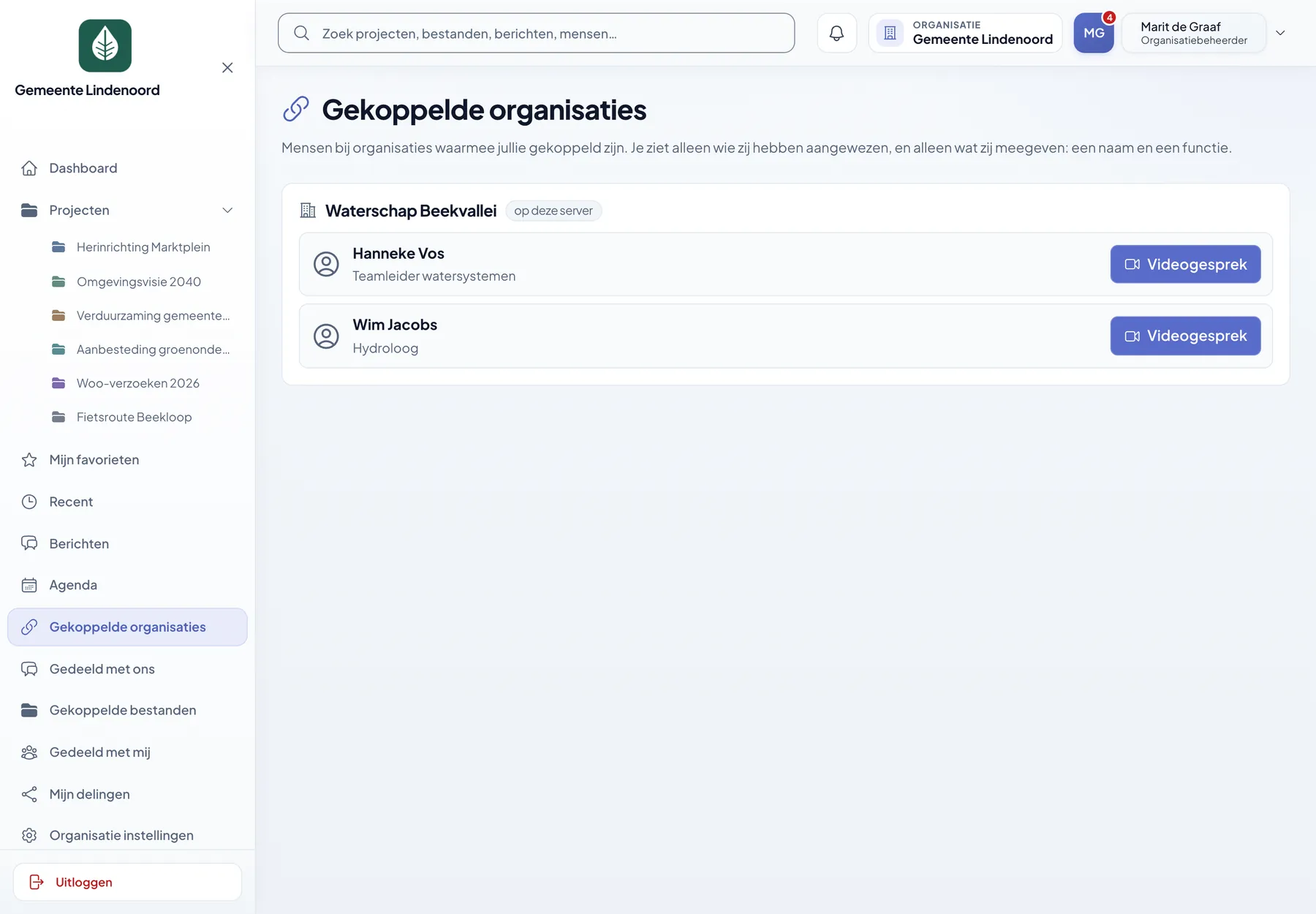
Linked organisations with the contact persons of a water board and a button to start a video call.
Linked organisations. The people the other side has designated, with name and job title, and a button to call.

03

Administration and accountability

Most collaboration tools are built for speed. Teamplein is also built for the question that comes next: who was actually allowed access to this, and can we prove it? That makes the difference as soon as sensitive documents end up in a case file.
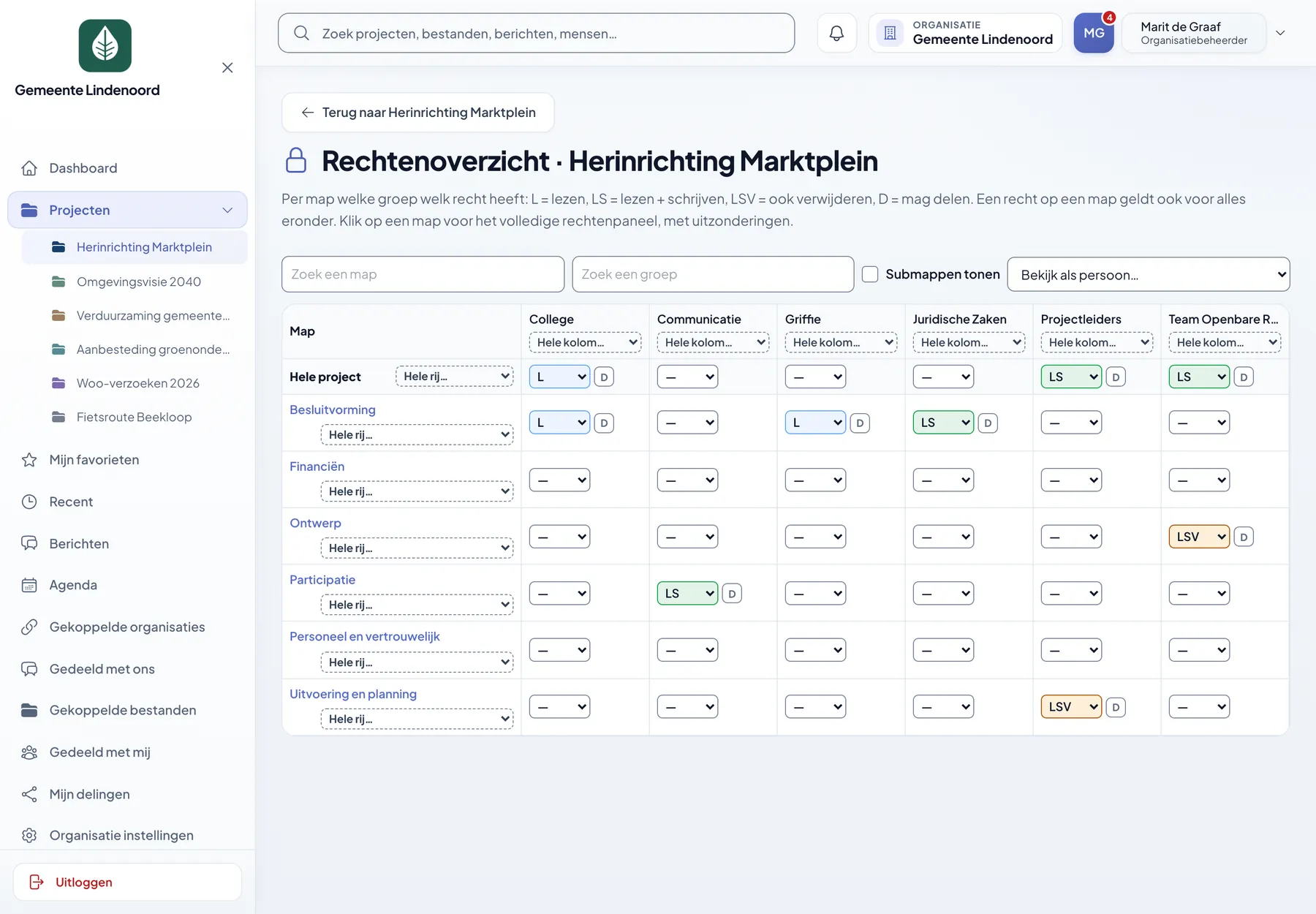
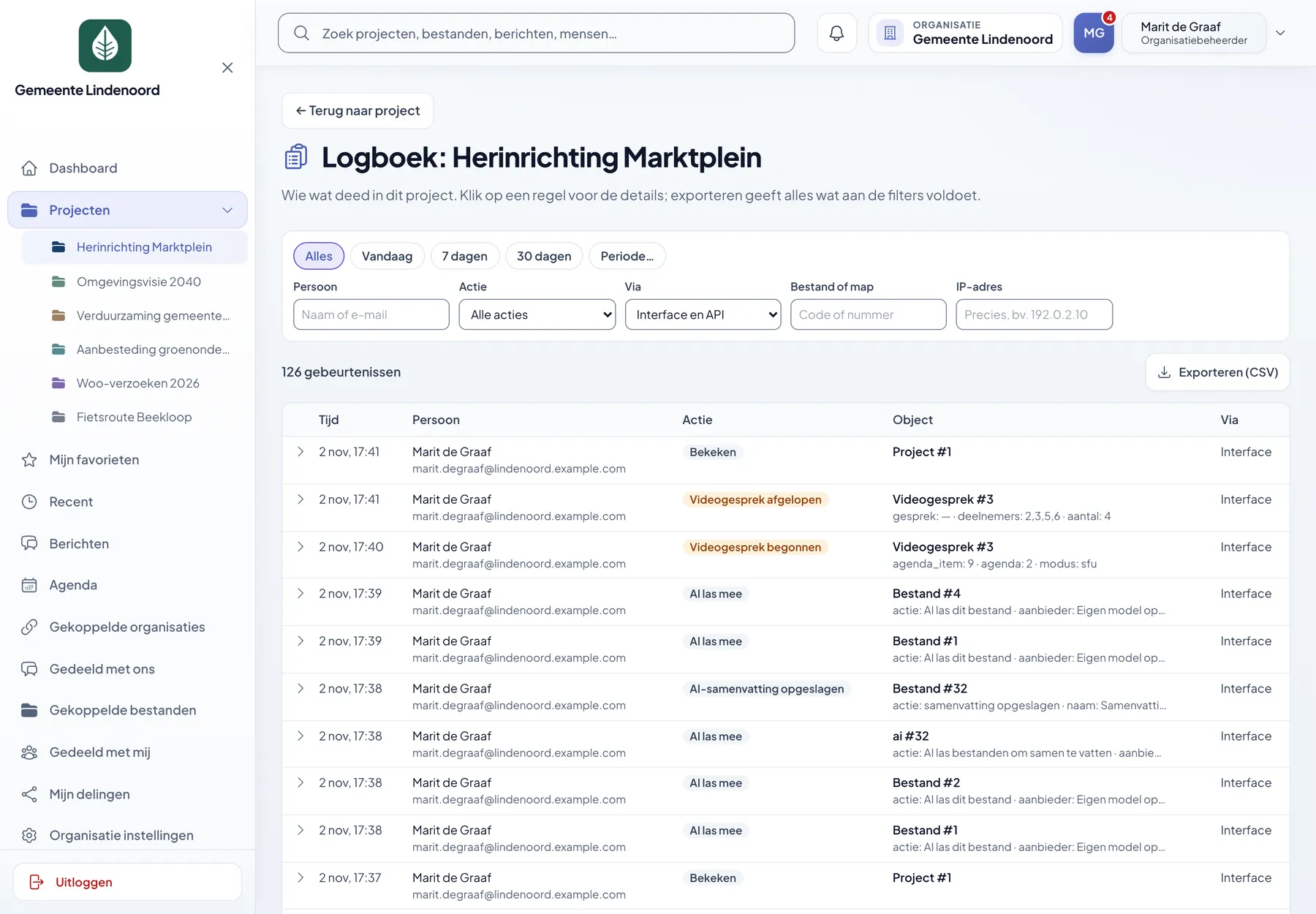
Permissions overview as a matrix of folders and groups with read, write, delete and share.
Permissions overviewSee per folder and per group who may do what, and adjust it straight away. With ‘Bekijk als persoon’ you check what someone actually sees.Screen 1 of 7

Permissions down to folder level

Per person and per group: read, write, delete and share. Role and permissions apply per organisation, and removing someone from a group closes all the doors at once.

Retention periods and freezing

A period per file, folder or project, and freezing a case file so that nothing can be permanently removed. Whoever wants to delete something that is being held makes a request to the administrators.

No third parties in the browser

No external scripts, fonts or images. Videos from YouTube or Vimeo load only after consent each time, and you import external images into your own storage.

Two-factor authentication

Using an authenticator app or a code by email, and can be made mandatory for the whole organisation or a group.

Limiting access by IP

Do you want an environment to be reachable only from office networks or a fixed VPN? Then you block the rest by address or range.

Your files where you want them

On our servers in the Netherlands, on your own server or in your organisation's object storage. The data in the database is encrypted.

Teamplein is InnoDIGI's own product: we build it and we maintain it. That also means no supplier stands in between if you need something that is not included yet.

On your phone

Messages, also on the move

Teamplein works in the browser, so nothing needs to be installed. Messages is designed throughout for a narrow screen: the list, the conversation and the conversation details each get their own space.
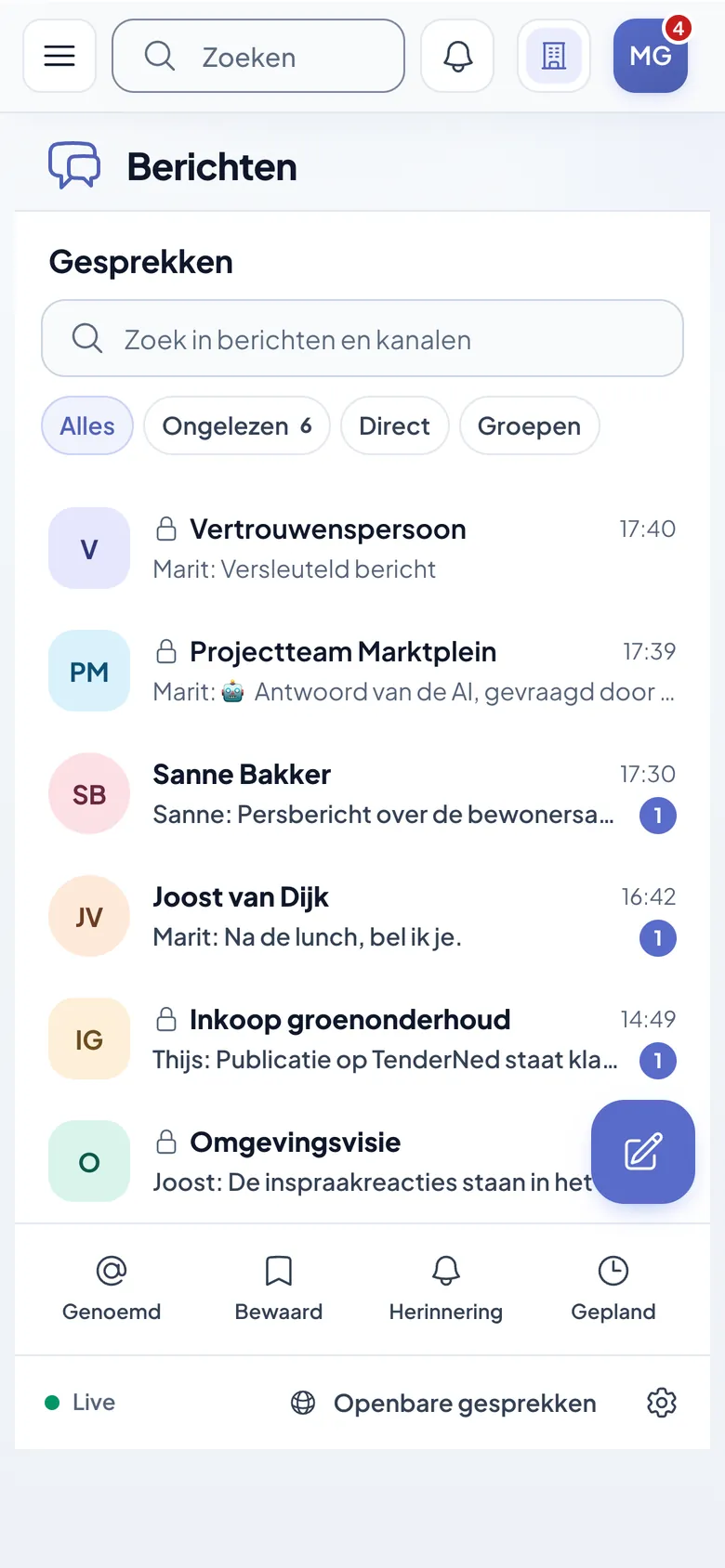
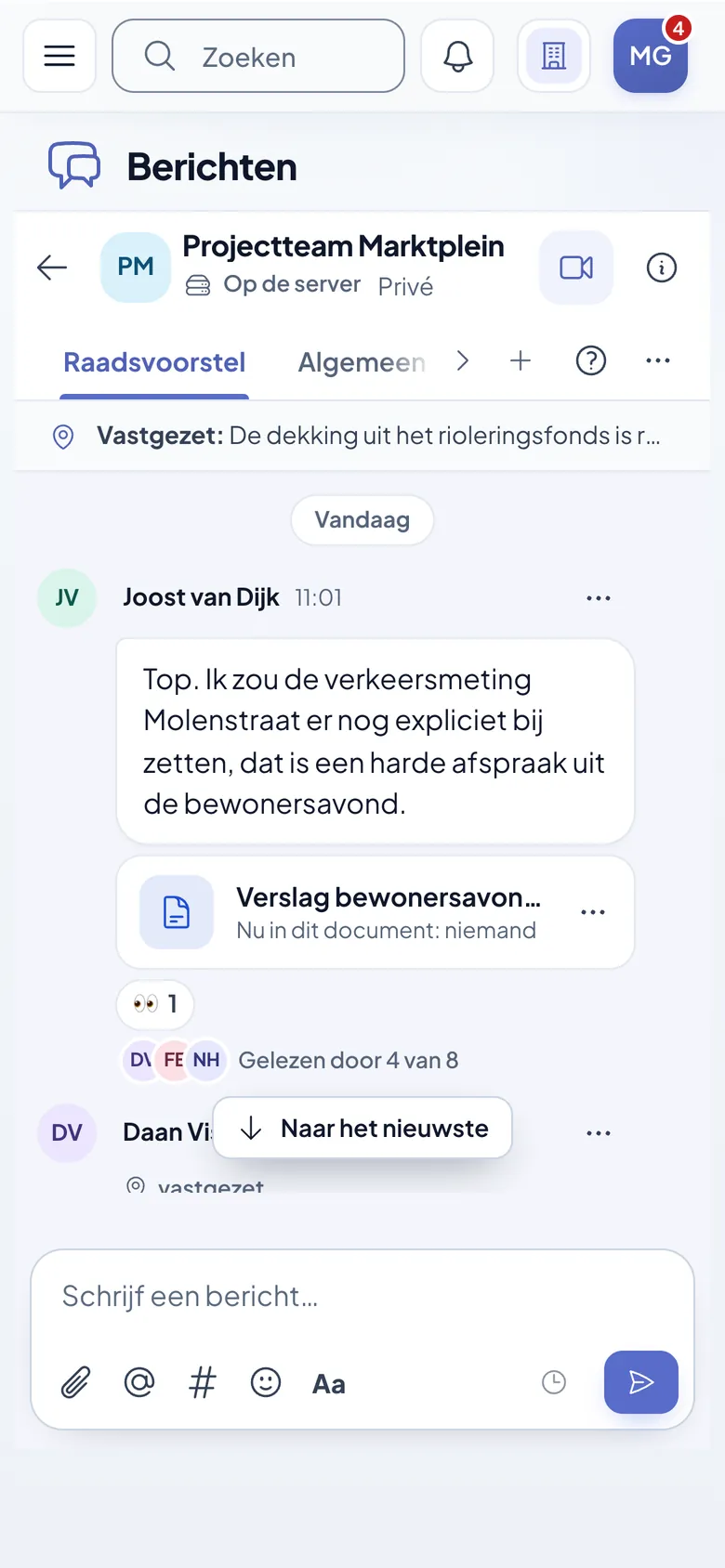
  • Filter conversations by unread, direct or groups
  • A conversation with replies and who has read it
  • No app store and no one else's notification service
Conversation list on a phone, with filters and unread counters. A conversation on a phone, with channels at the top and the message field at the bottom. The About this conversation panel on a phone, with the participants and notifications.

Request a demo

See Teamplein in action?

Book an online demo. We walk through a project from start to finish and answer your questions.

04 · What is in it

All features, neatly grouped

Below is what Teamplein can do today, grouped by area. Not everything has to be on: your organisation switches on what it uses, so that a simple case file also stays simple.

Click a category to see only the features from that part.

28 features visible

  • Files & content

    Projects with their own phases

    Every project gets its own phase, which you name, colour and order yourself.

    • Phases with their own name, colour and order
    • Own icon and colour per project
    • Switch what you use on and off per project
    • See at a glance where something stands
  • Files & content

    Folders, subfolders and headers

    Arrange a file the way your organisation already does, with a header that explains what belongs in a folder.

    • Folders within folders, with their own permissions
    • Headers with formatting and images
    • Move and copy, also in bulk
    • A wastebasket for what went by accident
  • Files & content

    Ten types of content

    From a single document to a photo gallery: every subject gets the form that suits it.

    • Document, document set and archive file
    • Image, gallery, video and audio
    • Text and wiki, with joint editing
    • Tasks with check-off and deadline, and websites
  • Files & content

    Photo library

    All the images of a project in one place, to browse through or view as a timeline.

    • Grid, mosaic, list or timeline
    • Filter by folder, year and label
    • Search by name, description and alt text
    • Alt text for images, for accessibility
  • Files & content

    Labels, values and deadlines

    Add the details you want to be able to filter, add up or keep an eye on later.

    • Labels per file and per folder
    • Amounts, distances, hours or durations
    • Deadlines that stand out as they approach
    • Favourites and recent items for what you need every day
  • Files & content

    Searching and finding again

    One search bar across projects, files, messages and people, with its own address to share.

    • Search within the content of files
    • The passage with the hit alongside
    • Filter by type, period and author
    • Only what you are allowed to see yourself
  • Files & content

    Versions, templates and Office

    A new version does not throw away the previous one, and what comes up often you set up as a template.

    • Files with version history
    • Texts with a view of what changed
    • Templates for texts and Office files
    • Edit Office files together with your own OnlyOffice server
  • Collaboration

    Messages

    Conversations with channels per topic, in the same environment as the documents.

    • Direct, in a group or public
    • Mentions, also of a group
    • Threads, emoji and pinned messages
    • For you: mentioned, saved, reminder and scheduled
  • Collaboration

    Messages that stay with the case file

    A discussion should be findable where the rest of the case file is.

    • Save a conversation in a folder
    • Refer to files without giving away permissions
    • Email if you miss a mention
    • Forward within the organisation, with the origin included
  • Collaboration

    Confidential conversations

    Messages that the browsers encrypt themselves, for what is nobody else's business.

    • The server stores unreadable text
    • Security code to compare
    • Not archived, and it says so
    • On or off per organisation
  • Collaboration

    Agenda

    A calendar per team and for the whole organisation, with categories and a bin.

    • Recurring items and exceptions
    • Registration with a maximum and a waiting list
    • Read external calendars via iCal
    • Publish to a website or WordPress
  • Collaboration

    Video calls

    Call from a conversation, calendar item, project or profile, on your own infrastructure.

    • End-to-end encrypted, with verification code
    • Screen sharing
    • Guests via a link and waiting room
    • Nothing is recorded
  • Collaboration

    Comments, stars and votes

    The conversation sits under the file it is about, and you can gauge an opinion without a meeting.

    • Reply with attachments
    • Optionally visible only after approval
    • Stars and yes/no votes, which can be switched on per project
    • Follow changes with a notification
  • Sharing & linking

    Share links

    Share a file, folder or project with someone who has no account.

    • Password, end date and maximum number of times opened
    • View, download, upload or submit only
    • Prior approval by an administrator
    • Overview of everything that is open
  • Sharing & linking

    Sharing with colleagues

    Give a person or group access to a single file or folder, separate from the whole project.

    • With or without editing and onward sharing
    • With an end date and a purpose
    • Also from a personal folder
    • Can be withdrawn, and the trail remains
  • Sharing & linking

    Linking organisations

    Connect two organisations, on the same server or on two different servers.

    • Fingerprint that administrators read out to each other
    • Decide per direction and per group what is allowed
    • Contact list, calling, shared conversations, calendar and folders
    • Ending the link takes effect immediately
  • Access & roles

    Roles per organisation

    From system administrator to reader: everyone gets as much as the work requires.

    • System administrator and organisation administrator
    • Staff member with permissions per project or folder
    • Read-only for onlookers
    • The role applies per organisation, not per account
  • Access & roles

    Permissions and groups

    You manage access per group and per folder, not with one key for the whole environment.

    • Read, write, delete and share
    • Permissions overview as a matrix
    • View as someone else
    • Rules that explicitly deny access
  • Access & roles

    One account, several organisations

    If someone works for two organisations, they switch without logging in again.

    • Membership of several organisations
    • Switching with one click
    • Every request checked on the server
    • Registration links and personal invitations
  • Access & roles

    Logging in and security

    A second step at login and strong passwords, without Google captcha.

    • Authenticator app or a code by email
    • Can be made mandatory per organisation or group
    • Own computational challenge against bots, without a third party
    • API keys for bots, with the same permissions as the account
  • Accountability

    Log

    Every action is recorded, including viewing and downloading a document.

    • Create, change, share, log in and AI questions
    • Filter by person, action, file and address
    • Export as CSV
    • Optionally immutable to object storage
  • Accountability

    Archiving for Woo

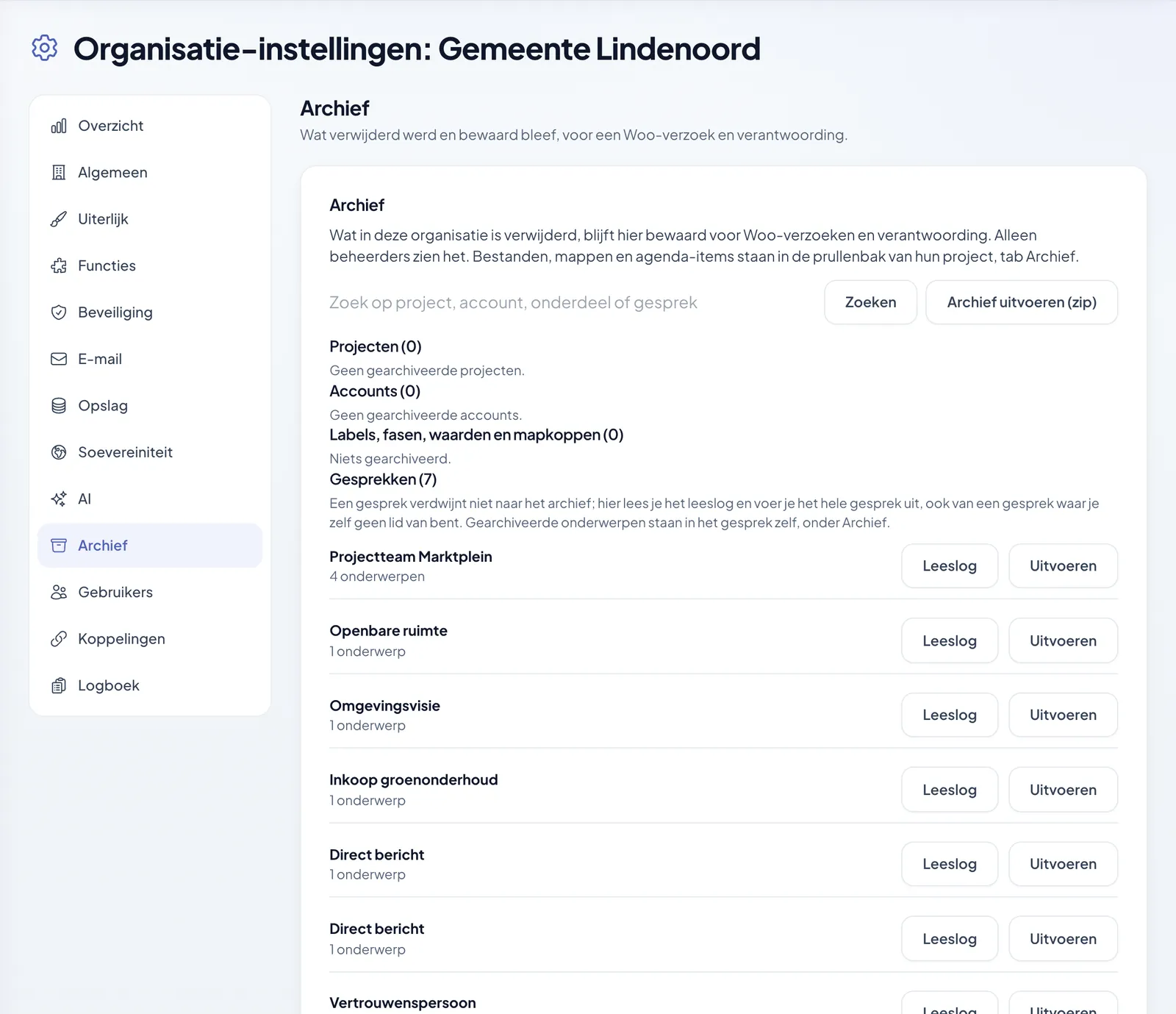
    What a user deletes disappears from view but is kept.

    • Files, folders, calendar items, comments and accounts
    • Search the archive and export as zip
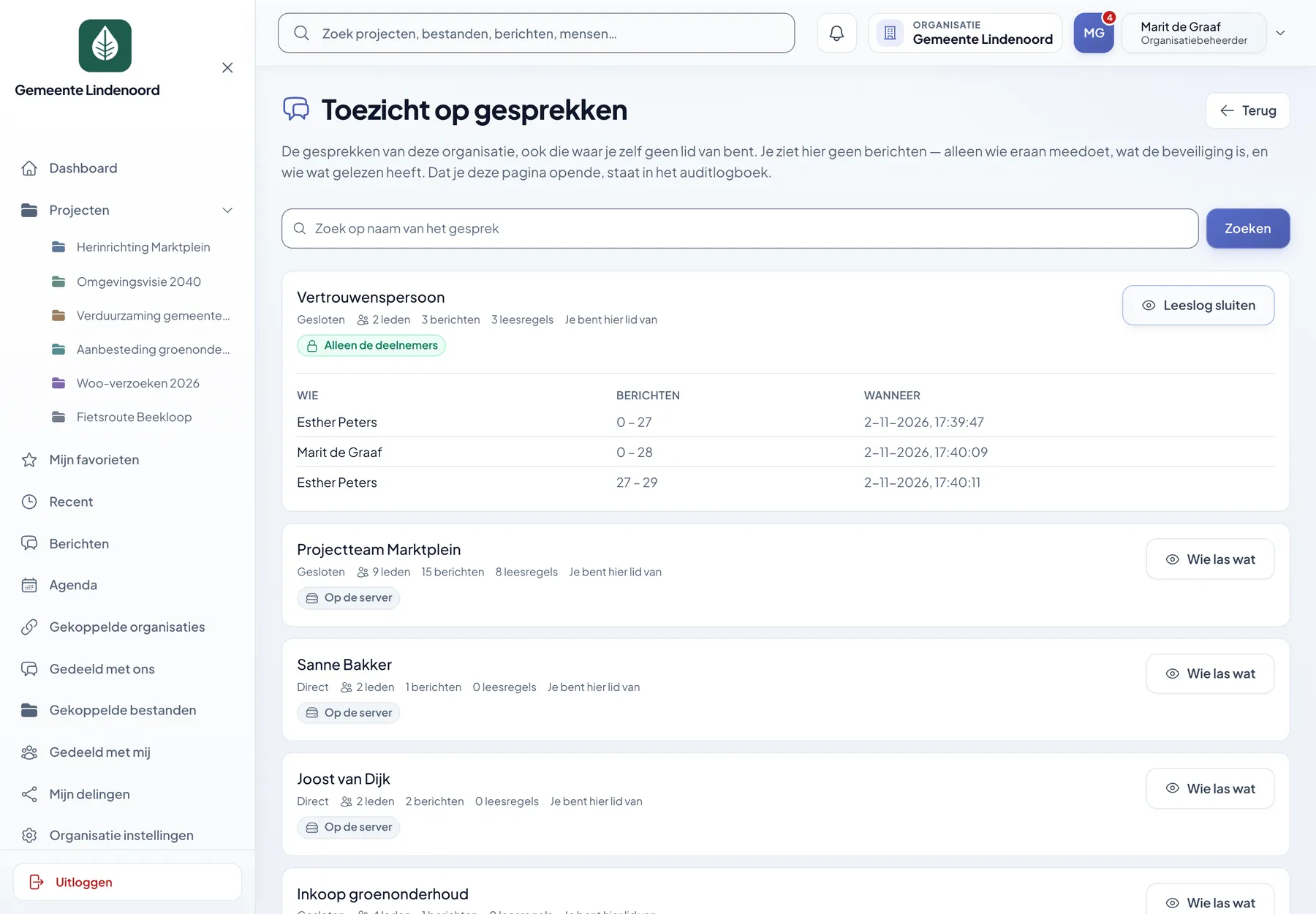
    • Read log per conversation
    • Selectable per organisation: archive or delete for real
  • Accountability

    Retention periods

    Set how long something is kept, even if someone wants to be rid of it sooner.

    • Per file, folder, project or label
    • Freeze until a case file is closed
    • Deletion requests to the administrator
    • Expired documents no longer go outside
  • Administration & AI

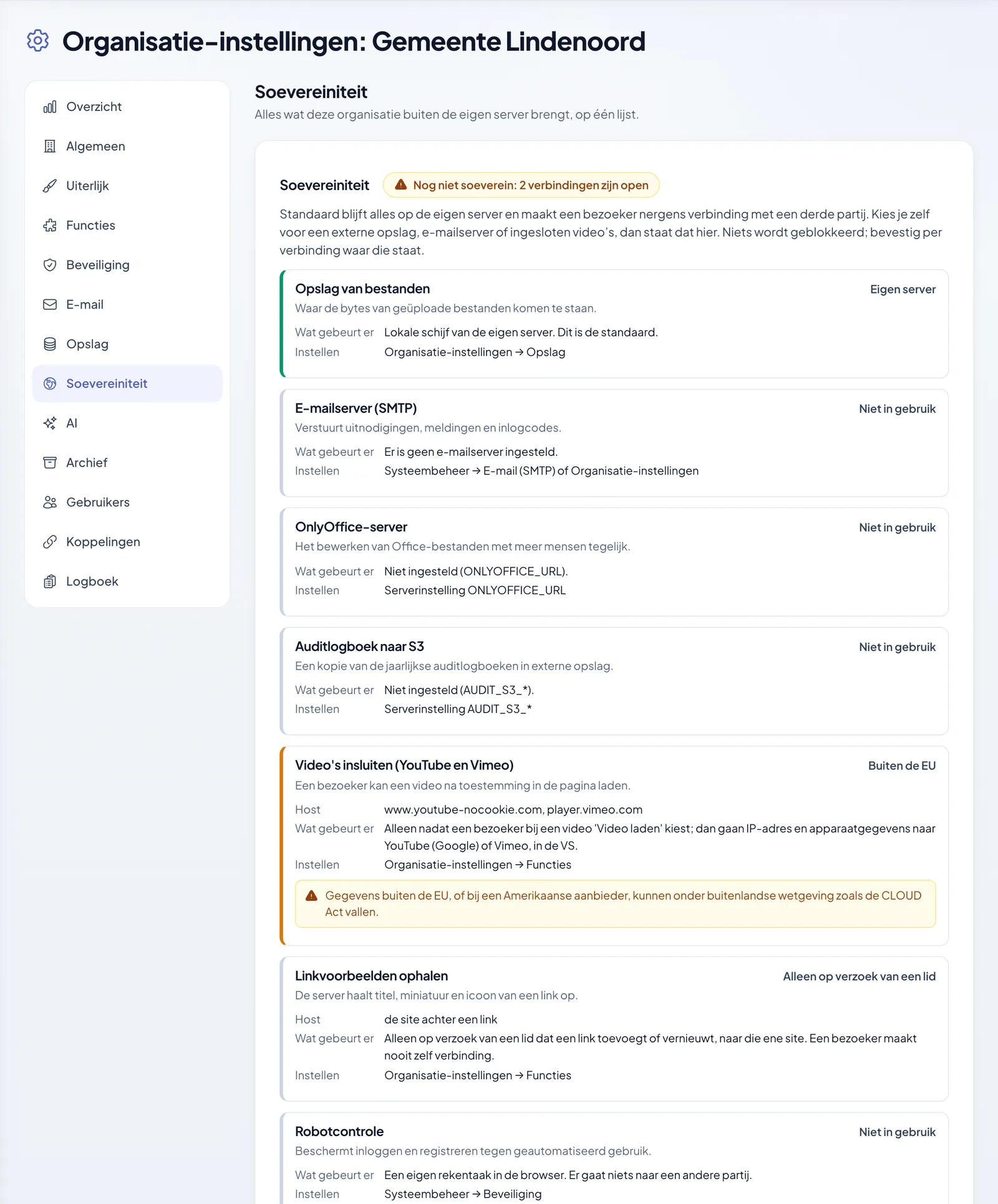
    Sovereignty

    By default Teamplein only talks to your own server, and every exception is on one list.

    • Storage, mail, media server and AI on one screen
    • Warning for a provider outside the EU
    • Videos from outside only after consent
    • Can be used with your own servers
  • Administration & AI

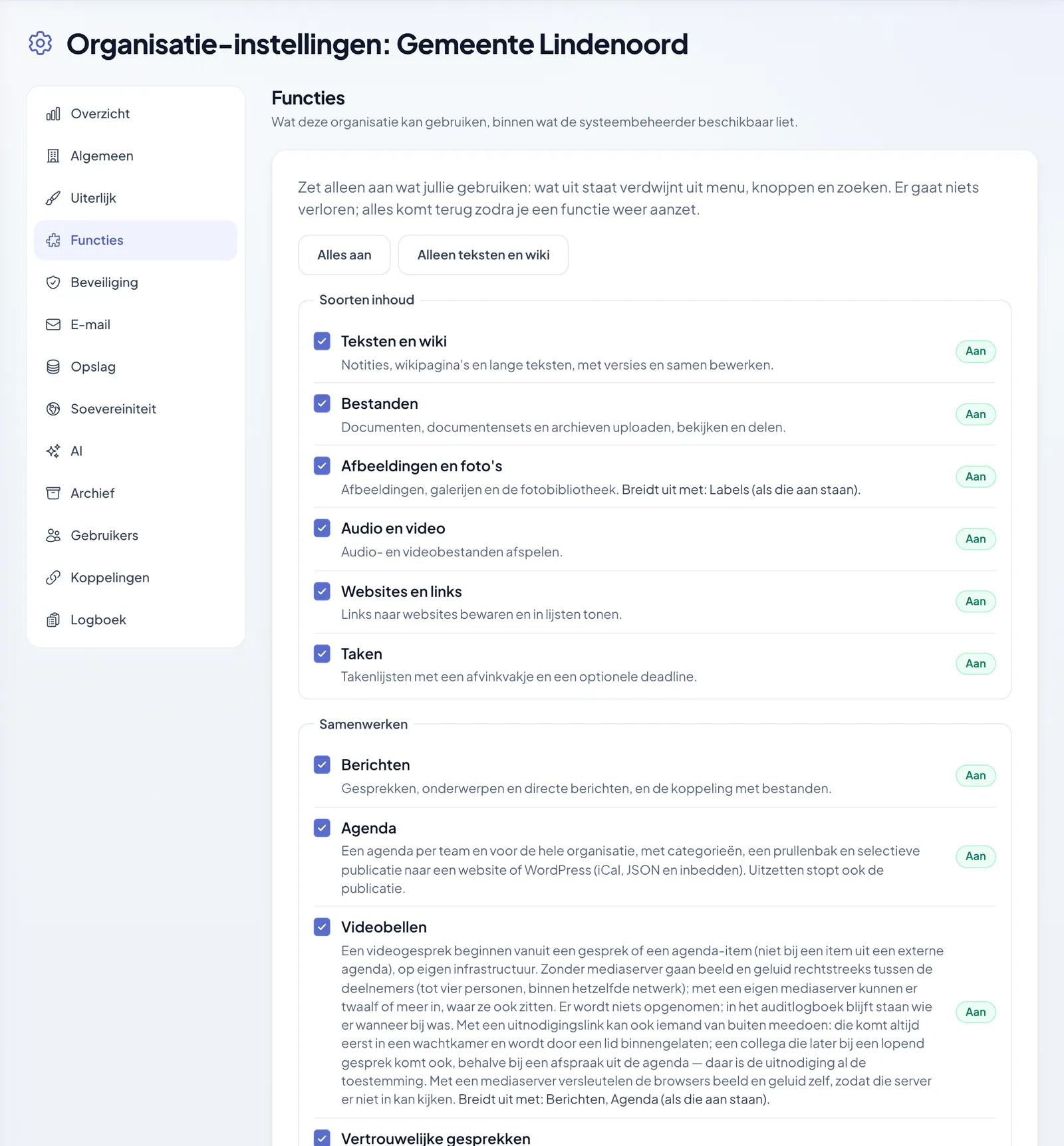
    Features per organisation

    The system administrator decides what is available, the organisation switches on what it uses.

    • Types of content, collaboration and links can each be switched off
    • Switching off deletes nothing
    • The server enforces it, not just the menu
    • Own logo and brand colour
  • Administration & AI

    AI help

    Summarising and asking questions, under the permissions of whoever asks.

    • Off by default
    • Own model or a provider of your choice
    • Usage and costs per person and per day
    • Scope can be set per folder
  • Administration & AI

    Storage of your choosing

    The documents sit where your organisation wants them.

    • On our servers in the Netherlands
    • On your own server
    • Or in your own object storage bucket
    • Usage per project made visible
  • Administration & AI

    Accessible and usable everywhere

    We follow the WCAG 2.2 level AA guidelines, and Teamplein works in every modern browser.

    • Everything operable with the keyboard alone
    • Settings for text size and read-aloud
    • Light and dark mode
    • No app or plug-in needed

05

Requesting information

Teamplein is built in-house, so you are not talking to a sales office but to the people who make it. If you request information, you receive:

  • An explanation tailored to youNot a general brochure, but an explanation of your own situation: what kind of projects you run, what has to be shared and what has to stay on record.
  • A guided tourWe show you the environment in an online session or at your own table, so that your colleagues can judge for themselves whether it is workable.
  • An honest answerIf Teamplein does not suit what you are looking for, we say so. Sometimes an adjustment to your current environment is wiser than a new platform.
  • An indication of priceA picture of the costs for your number of users and projects, before you are tied to anything.

Are you missing something you do need? That need not be a problem: Teamplein comes out of our own bespoke practice, and we build additions ourselves. For capturing websites and keeping an eye on accessibility we also have InnoARCHIVE.

Teamplein for your organisation?

Tell us briefly what kind of projects you run and where things are going wrong now. We will send information tailored to you and think along without obligation — even if the outcome is that you need something else.

Request information 073 234 0321 A quick reply, always personal.